Screen recording software is a digital tool or sometimes a platform where you can record whatever is happening on the screen in real time. Screen recording software allows you to monetize a specific window or selected portion. And also it enables the option of editing, from which you can print or stream the video, or you can add any kind of special effects before sharing the video.
For the past few years, the screen recording software has changed drastically and has become more certain for the user. Previously, the screen recorder was primarily used by tech professionals or educators, but in today's world, it is available for anyone to use, from gamers to streamers and students. Screen recording software often has multiple formats like MP4 and MOV, which makes it even more compatible for the user to save it and also to share it.
Recording software has become more versatile, or you can say, a little bit more user-friendly than before. And you can even record a screen of immense quality, up to 4K or even 8K now. And better AI-powered features, like you can remove any background noise or you can automatically caption it. So, they are essentially creative assets for you.
Why Is Screen Recording Important in 2026?
The demand for screen recording is very high due to the rise in online learning and digital communication. Now, even companies are training their employees and recording it for use for later learning. It helps the educators as they plan to record the videos for their students worldwide. Industry-identified video-frenzied communications are already dominating the world in the areas of corporate or foreign spaces. A full-screen recording video can reflect a long and lengthy text, which not only saves your time but also helps you present the work even more systematically.
And as of 2026, everybody knows that AI is such a core part of everything, so AI integration in modern screen recording has become a main process for it to be efficient. Some of the features, like pre-editing transcription, automatic editing, and suggestions, even promote an efficient and fast experience.
Top 10 Best Screen Recording Software (2026)
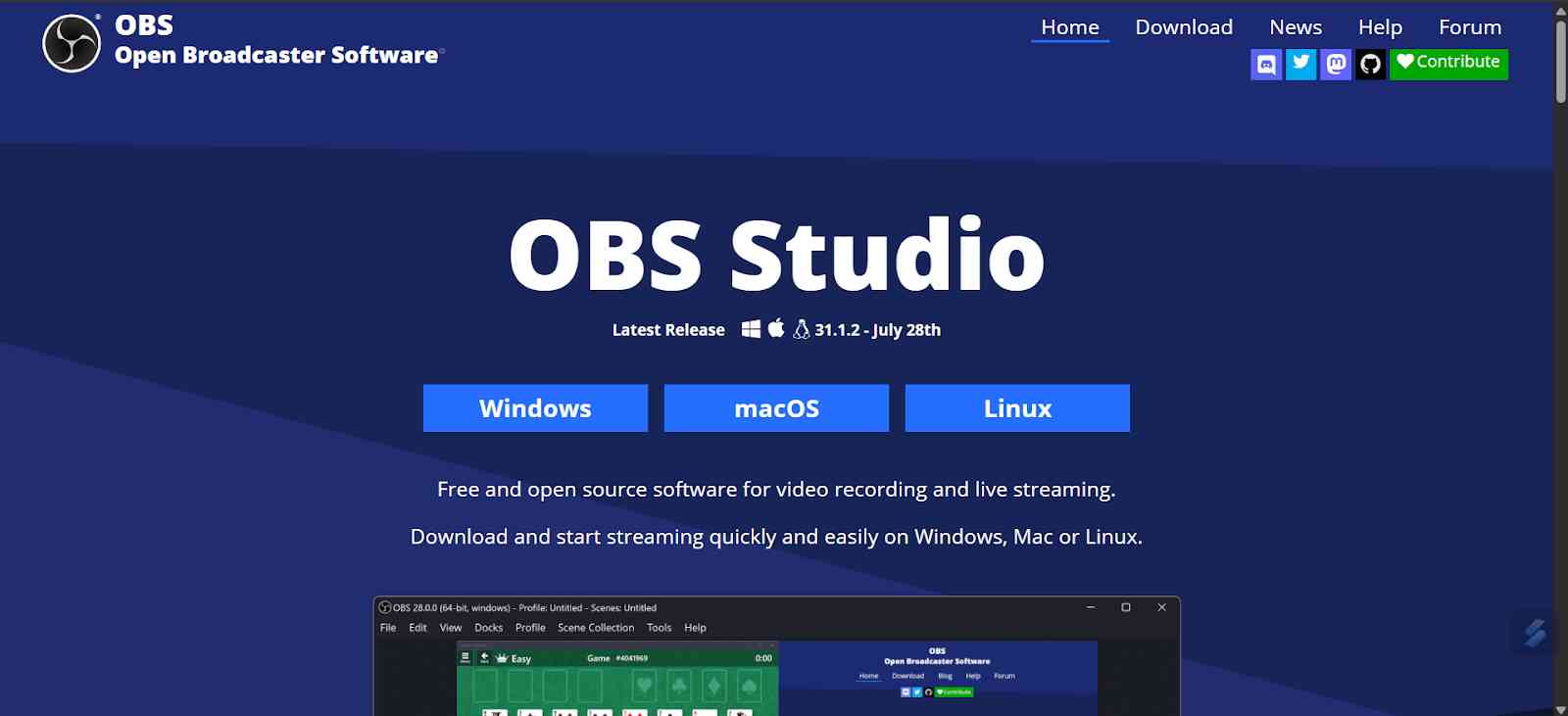
1. OBS Studio: OBS Studio is an open-source software. This software is popular among streamers and professional creators. This software offers you a high-quality recording and also has a live streaming capability.
Features:
- It is flexible afor customization.
- Live streaming and local screen recording is provided.
- It has the support for hardware encoding (NVENC,WuickSync).
- It has plugin/extension ecosystem for extra features.
Pros:
- This platform is fully free and opens source.
- It is highly customizable and flexible which is good for the advances users.
- It has the storing communities.
Cons:
- Steep learning curve for the beginners.
- It has no build in tools for advance vido editing.
Pricing:
This platform is completly free and no subscription is required.
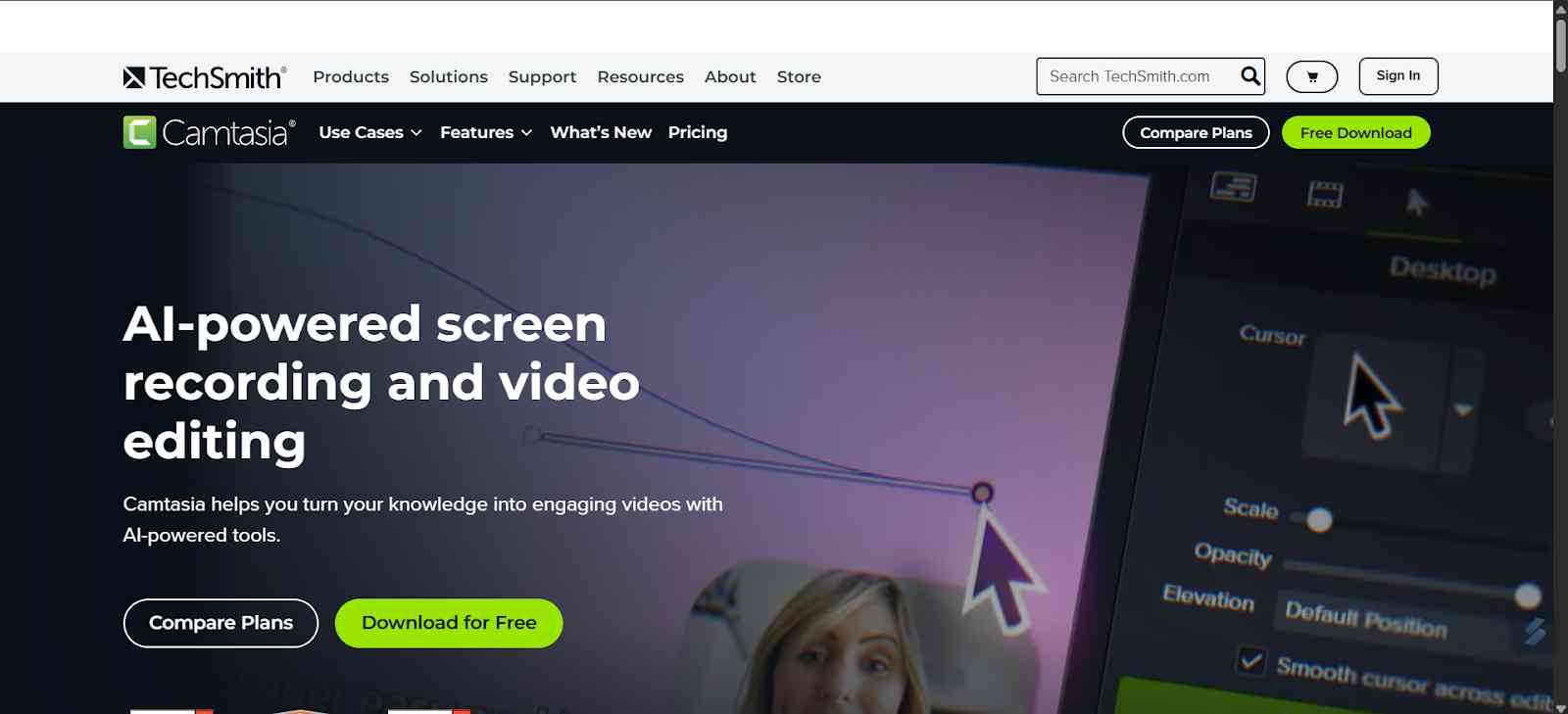
2. Camtasia: Camtasia is an all-in-one screen recording and video editing suite. It is a perfect platform for the professional who wants to create a polished tutorial or training video. It is free software. There is a built-in editor that allows you to annotate transitions and also animate seamlessly. There is a feature of drag-and-drop. In 2026, it has improved a lot from the export option and offers faster rendering and more format options.
Features:
- Camtasia offers you with screen,webcam and audio recording all in one tool.
- It is a full video editor: timeline,effects and all the features of video editor.
- Exports the video in many types of formats and you also share directly
- Build in speech-to-text feature.
Pros:
- All-in-one , no need switch from editor to editor different work.
- Provides you with the polished videos with great effects.
- It is considered to be easier than any other advance pro tools.
Cons:
- It is little bit in the expensive side.
- During rendering time it can get slow on the weaker machines.
Pricing:
- Stater/free is free.
- Essential: $ 179.88/year
- Create: $249/year
- Pro: $499/year
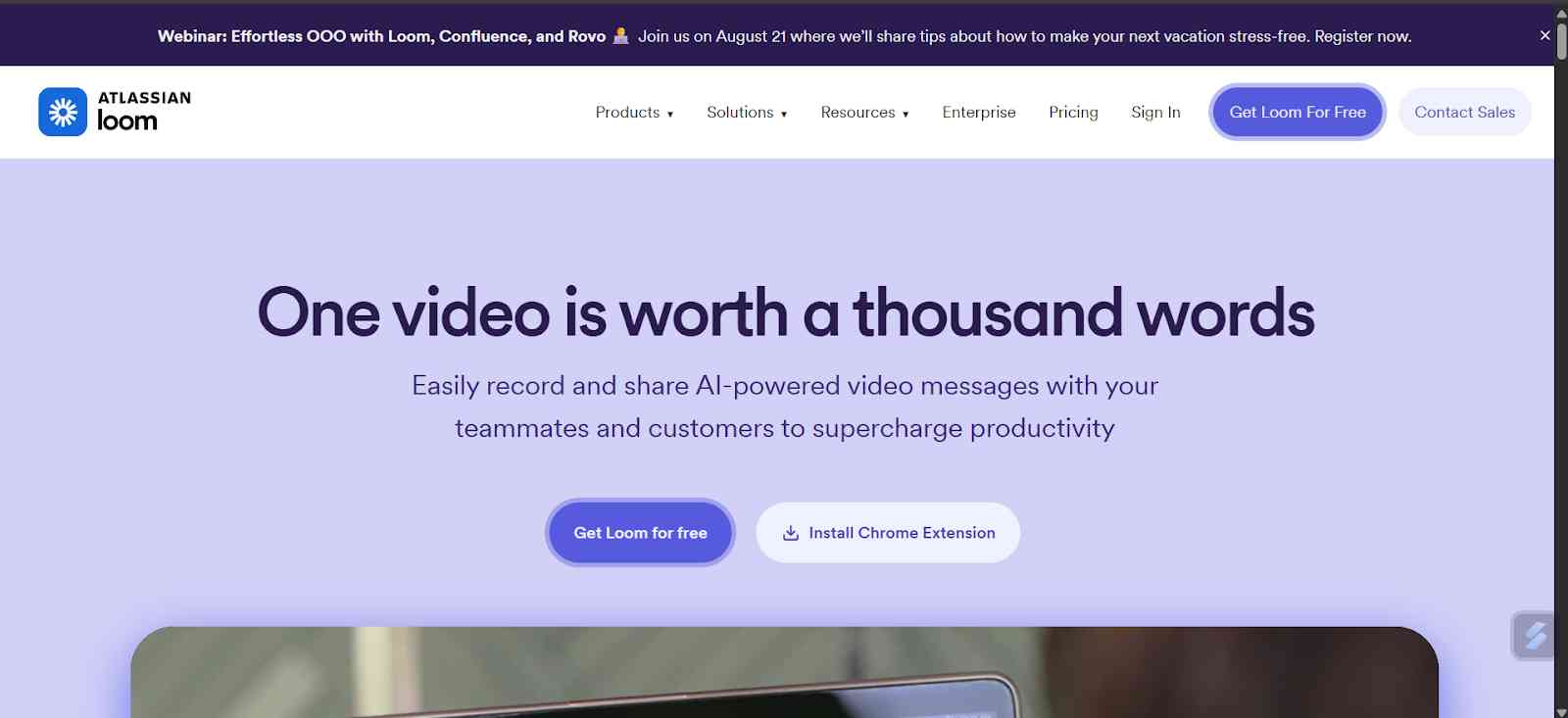
3. Loom: Loom focuses on speed and simplicity. It is widely used for business communication and particularly for any kind of updates and quick feedback. It is a very lightweight software, and the videos that are recorded in this are stored in the cloud for easy sharing. You can record it with both your screen, webcam, or both simultaneously.
Features:
- It has record screen,wencam and microphone in a few clicks.
- Trimming and simple can be easily be done.
- Desktop app and browser extension is also available.
- You can instantly upload ,cloud hosting and also provides with the shareable link.
Pros:
- It has lightweight and minimalistic interface.
- Cloud storage and analytics build in provided.
- It is very to set up and easy to share the work.
Cons:
- Advances features are locked for the advance users.
- Less powerful editing compared to any editors.
Pricing:
Free plan is available and for paid plan at $12.50/month per user.
4. Screencast-O-Matic : Screencast-O-Matic offers you a very easy-to-use interface and a very solid editing feature. It is mostly popular among educators and trainers who are creating videos for lessons and tutorials. It can record the screen and also supports both online and offline recording. Also provides you with a feature of adding captions, annotations, and translations.
Features:
- It has a screen and web recording mode.
- It also provides you with cloud hosting and sharing.
- One of the best features about this platform is that it provides you with captioning transcripts.
- It has the basic editor trend and caption layovers.
Pros:
- It is simple and lightweight and easy to use for any kind of beginners.
- It has affordable prices and good for casual to mid-tier users.
- It has a reasonable feature set for tutorials and training.
Cons:
- Editing capability is limited compared to any kind of programs.
- For instance, features schemes for pricing tales.
Pricing:
It has free plan. Paid version starts from $48 per year.
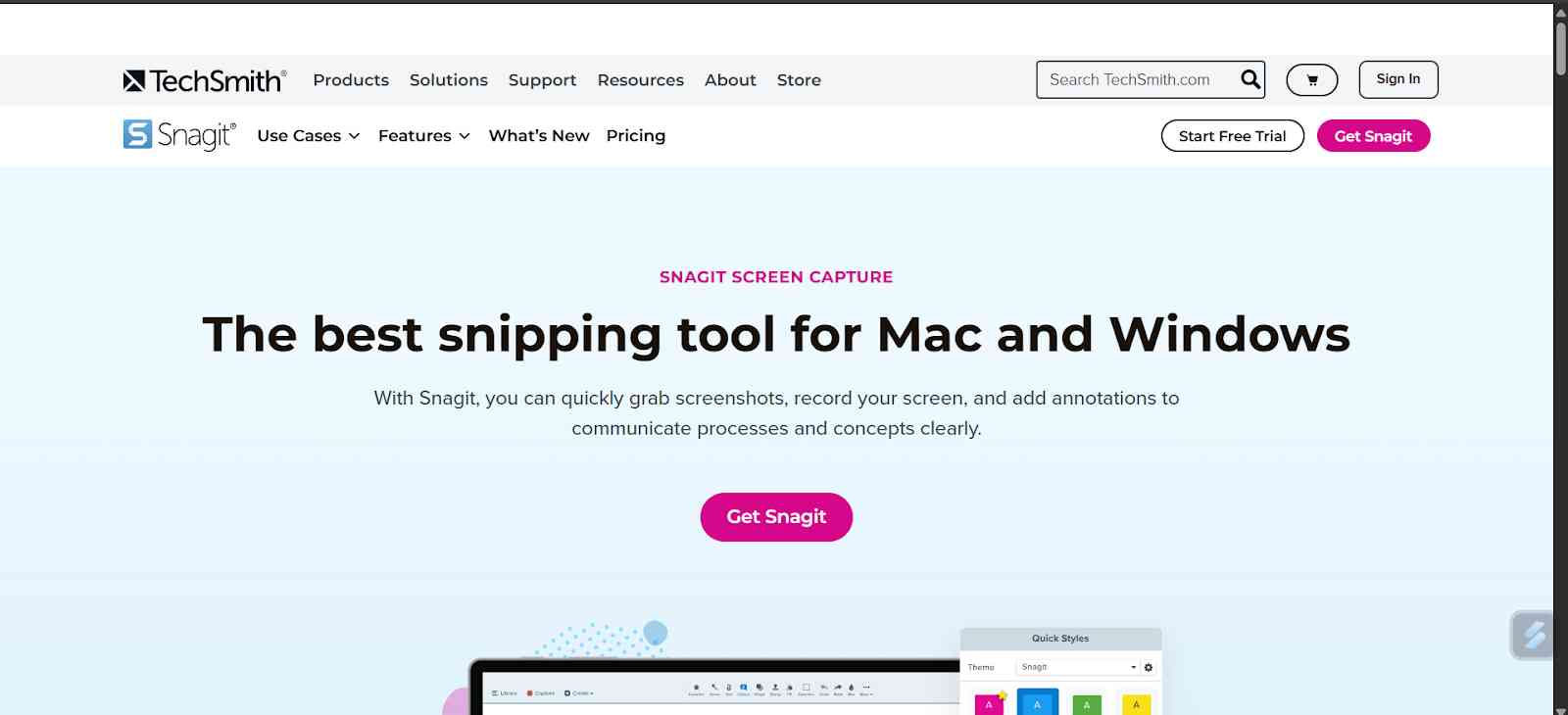
5. Snagit: Snagit by TechSmith is one of the versatile tools designed for capturing both images and videos. It is a great platform for professionals who want to record in high quality. There is a built-in editor support that also helps you to annotate and highlight any important stuff. A scrolling capture feature is especially handy for web pages and long documentation.
Features:
- It provides you with screen capture, scrolling features, and screen recording.
- Audio plus video capture still can be done.
- Creation of a quick how-to-use video from a screenshot and also with narration.
- It has a library of captures and sharing tools.
Pros:
- Very strong for any kind of screenshot plus mixed media workflows.
- Fast for any intuitive code for documentation tutorial.
- Light on the system compared to any kind of media editor.
Cons:
- It does not have any full featurese for any kind of head-on video editing.
- Some users may need an external tool for any heavy editing.
- It is a platform that is sufficient because of the subscription only.
Pricing:
The pricing is $39 per year. For personal use and for business use, it's $48 per year.
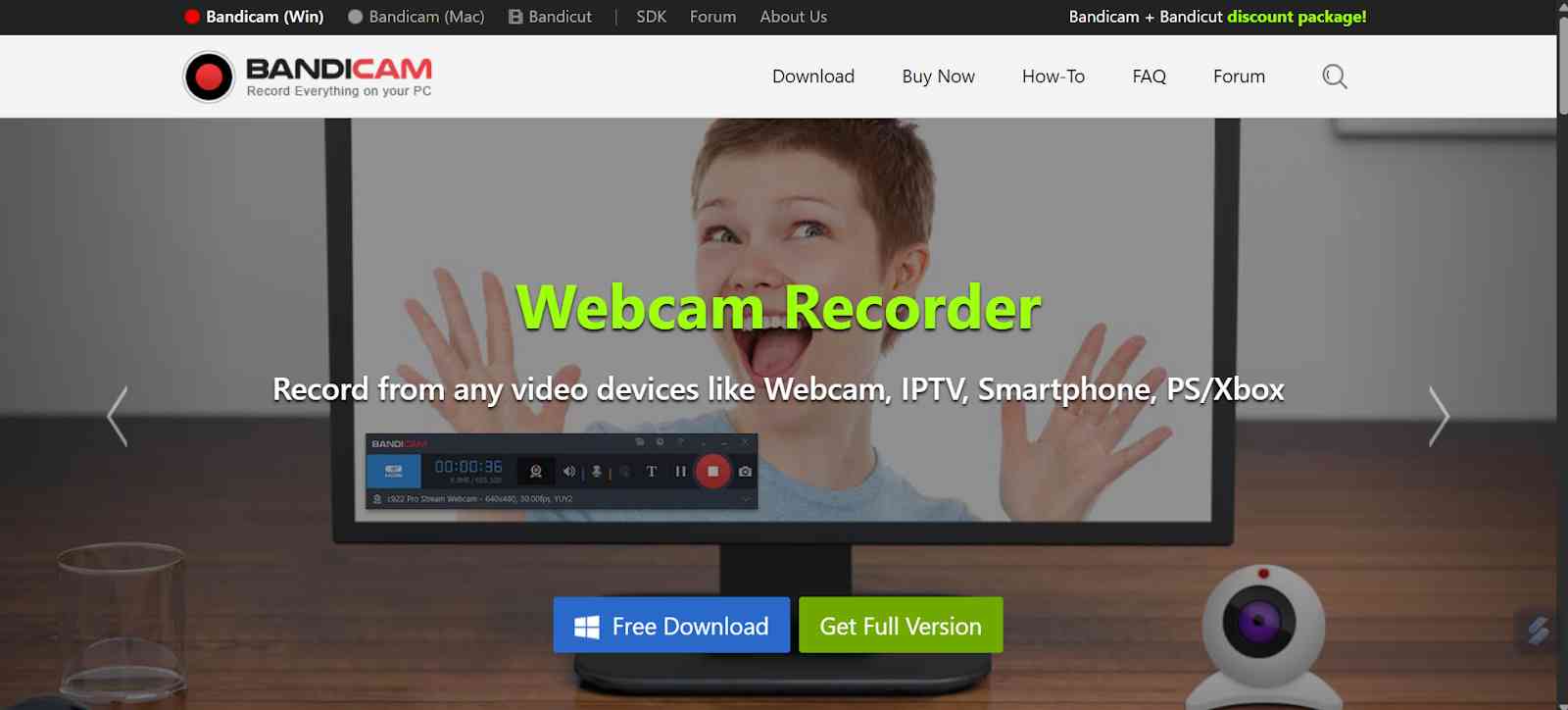
6. Bandicam : BandiCam is known for its very high-quality recorded videos with a minimum CPU usage. It is a favorite amongst gamers for recording gameplay without any lag.
Features:
- High performance, like screen and online screen, and game recording is provided.
- You can do webcams, layovers, real-time drawing, and mouse fix.
- It has a scheduled and timed recording.
- You can compress the file size during any kind of recording.
Pros:
- It is lightweight and optimised for performance, like good for gaming.
- The video quality is good.
- Easy for day-to-day and common tasks.
Cons:
- Editing features are very minimal.
- The free trial version comes with a watermark. That is the limitation.
Pricing:
One-time license is $39.95.The free version is also available.
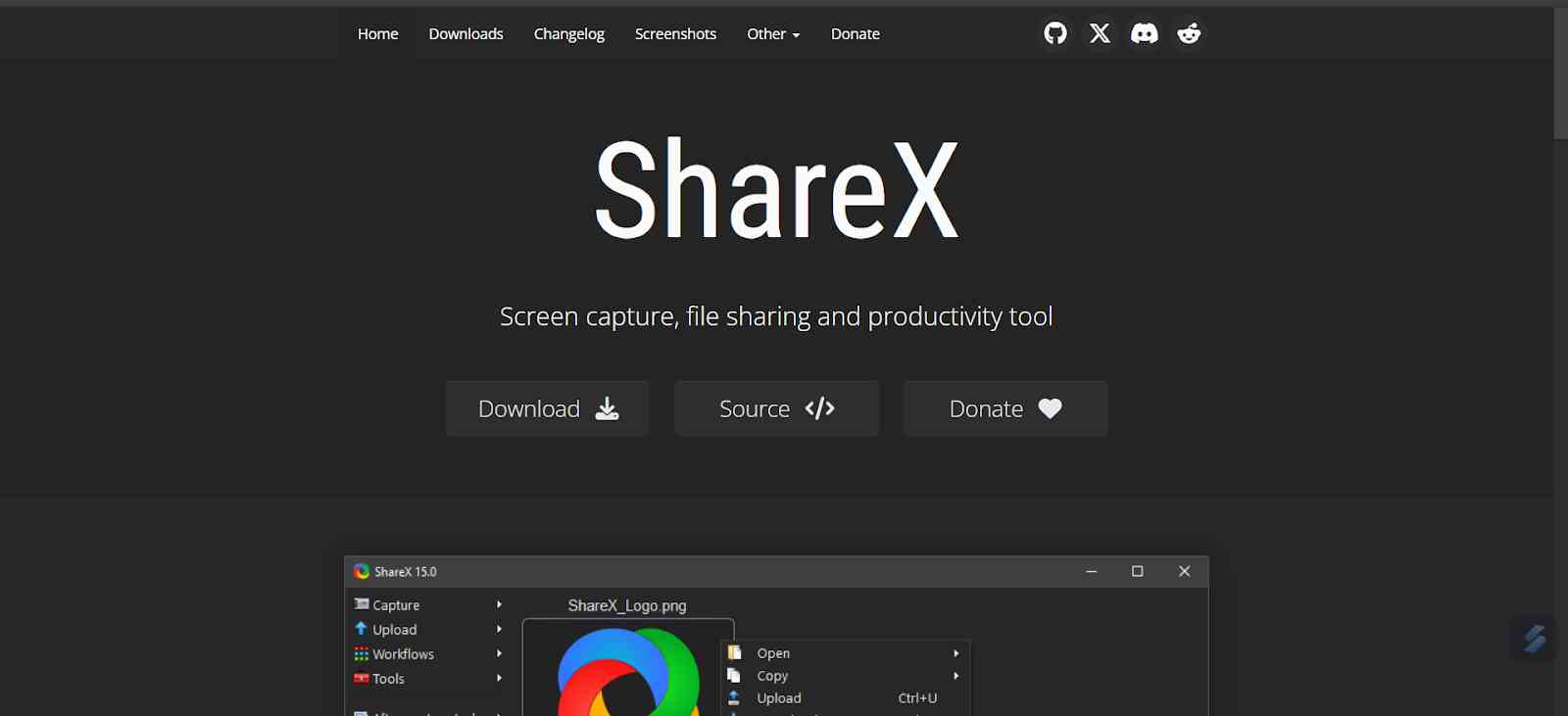
7. ShareX: ShareX is a powerful open-source screen capture and recording tool for Windows only. It offers you many advanced features like Ion Sharing and the Multiple Captures method. It is a very flexible and low-cost model which makes it more appealing for the developer, designer, or any creator.
Features:
- Free open-source captures.
- Support and retention window, full-screen captures, scrolling capture, etc.
- Editing tools, GIS export, and screen recording are also there.
Pros:
- Fully free and no watermarks are there.
- Extremely customizable when it comes to video.
- Lightweight, common tasks.
Cons:
- Lacks in the building, it runs video editing.
- UI and workflows can be implemented for any kind of business.
Pricing:
Free open-source and no cost.
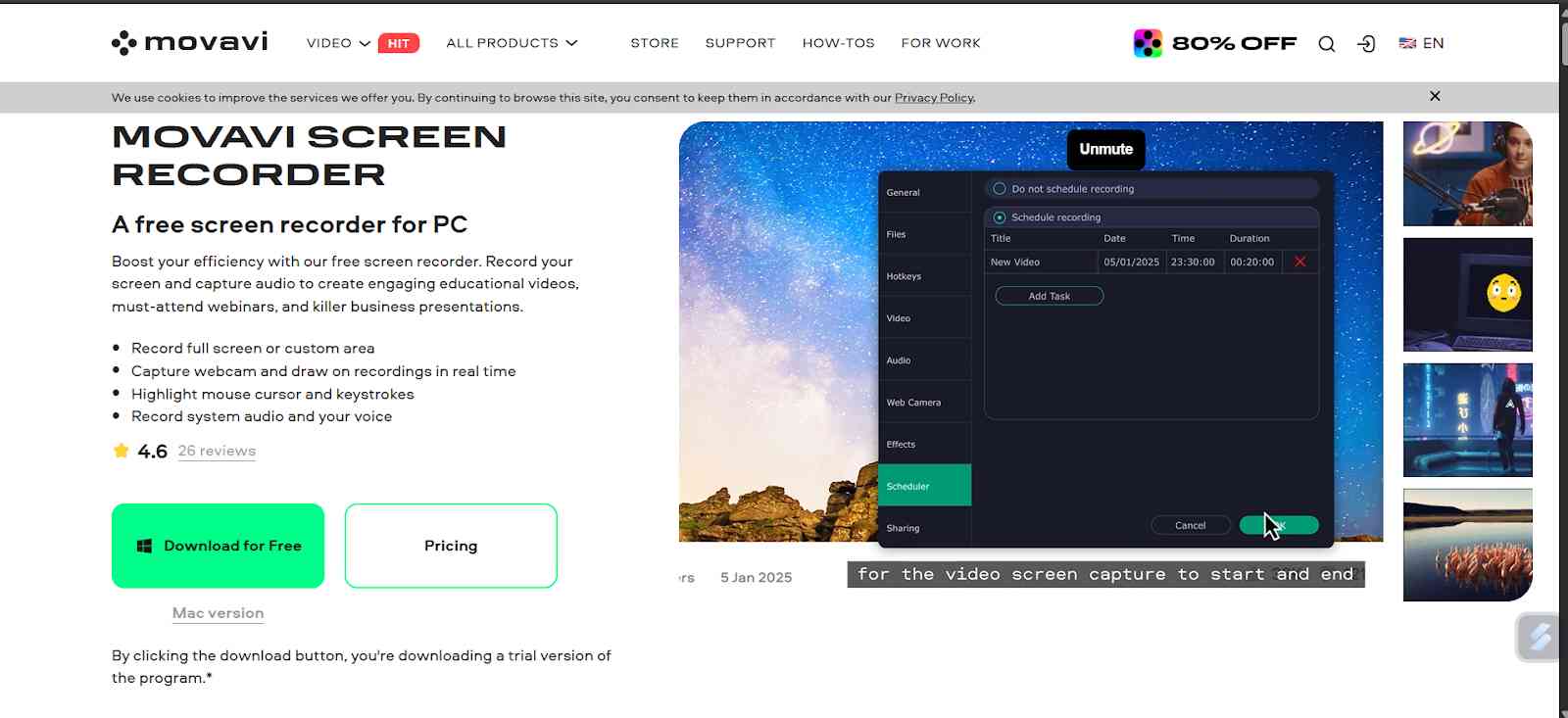
8. Movavi Screen Recorder: Movavi puts you with a clean interface for beginners. This also gives you high-quality recording options. It is great for webinars, video calls, and tutorials. It supports webcam overlays, scheduled recording, and instant sharing on social platforms.
Features:
- You can capture the screen, and for webcam, microphone, and all are available.
- You can schedule the recording, set a time to start and stop as you like.
- On-screen drawing and editing during a recording is provided.
- Easy UI with basic editing is there in the basic package.
Pros:
- Good balance between kind of usability and features.
- Scheduling is really handy for any unintended captures.
- Schedule for both casual and more serious recording tasks as well.
Cons:
- This may lag in the deep comparison, but compared to any kind of low editing performance.
- It may lag on the less powerful systems.
Pricing: It is a one-time license, $42.95.
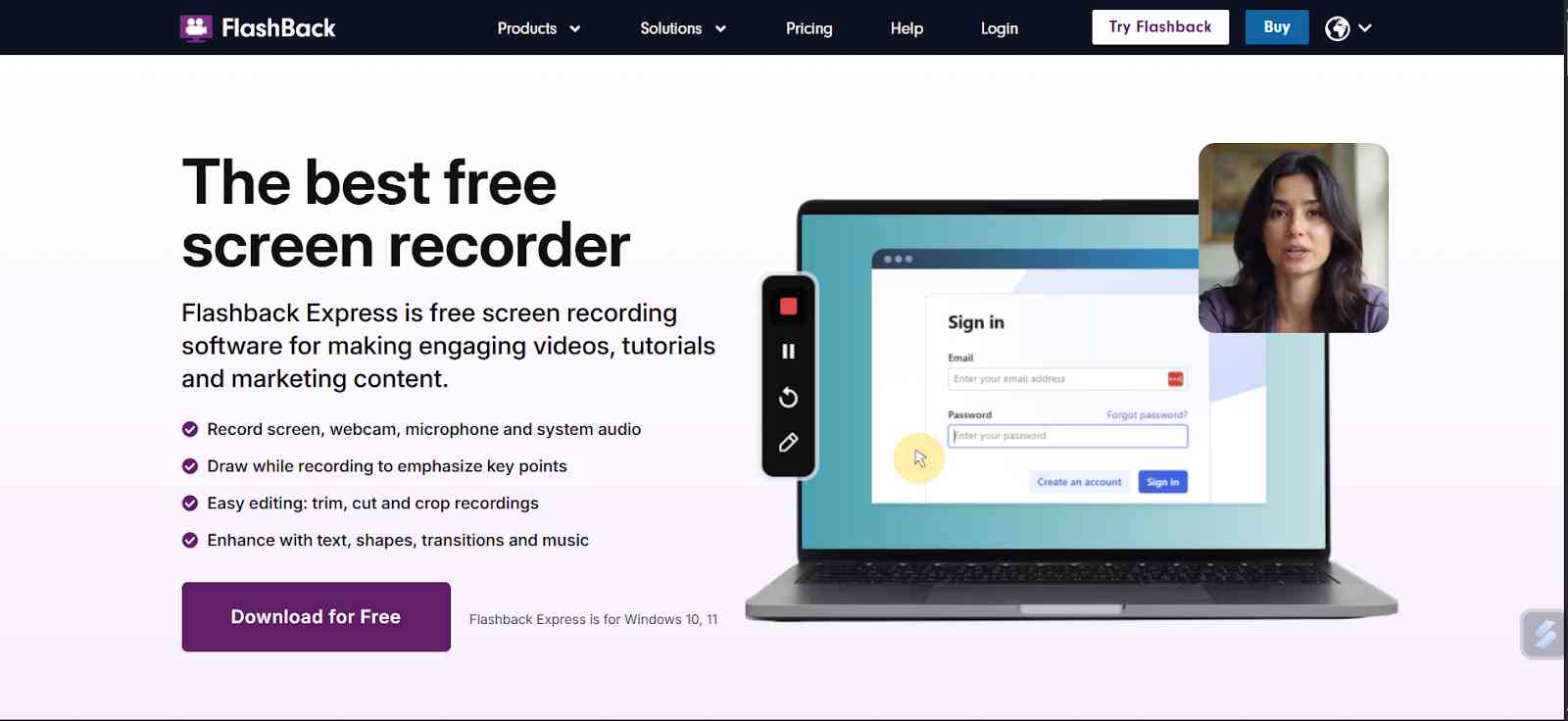
9. FlashBack Express: Flashback Express is an easy-to-use recorder. It helps you with scheduled recording and multi-screening support. It is especially popular among educators and office professionals. The Pro version offers the AI auto-caption and advanced export settings for faster workflows.
Features:
- Screen, webcam, recording, and audio recording can be done.
- No time limit is there.
- The free version for Mac will also be there.
- You can schedule any kind of recording.
- It provides you with many export formats.
Pros:
- Very friendly for any beginners. Simple interface, easy to just record.
- The free version offers general protection.
- Recording capabilities without any notch or watermark.
Cons:
- The free version lacks editing and advanced tools.
- Only Windows compatible. Free versions are available.
Pricing:
For the free version, it's $49.
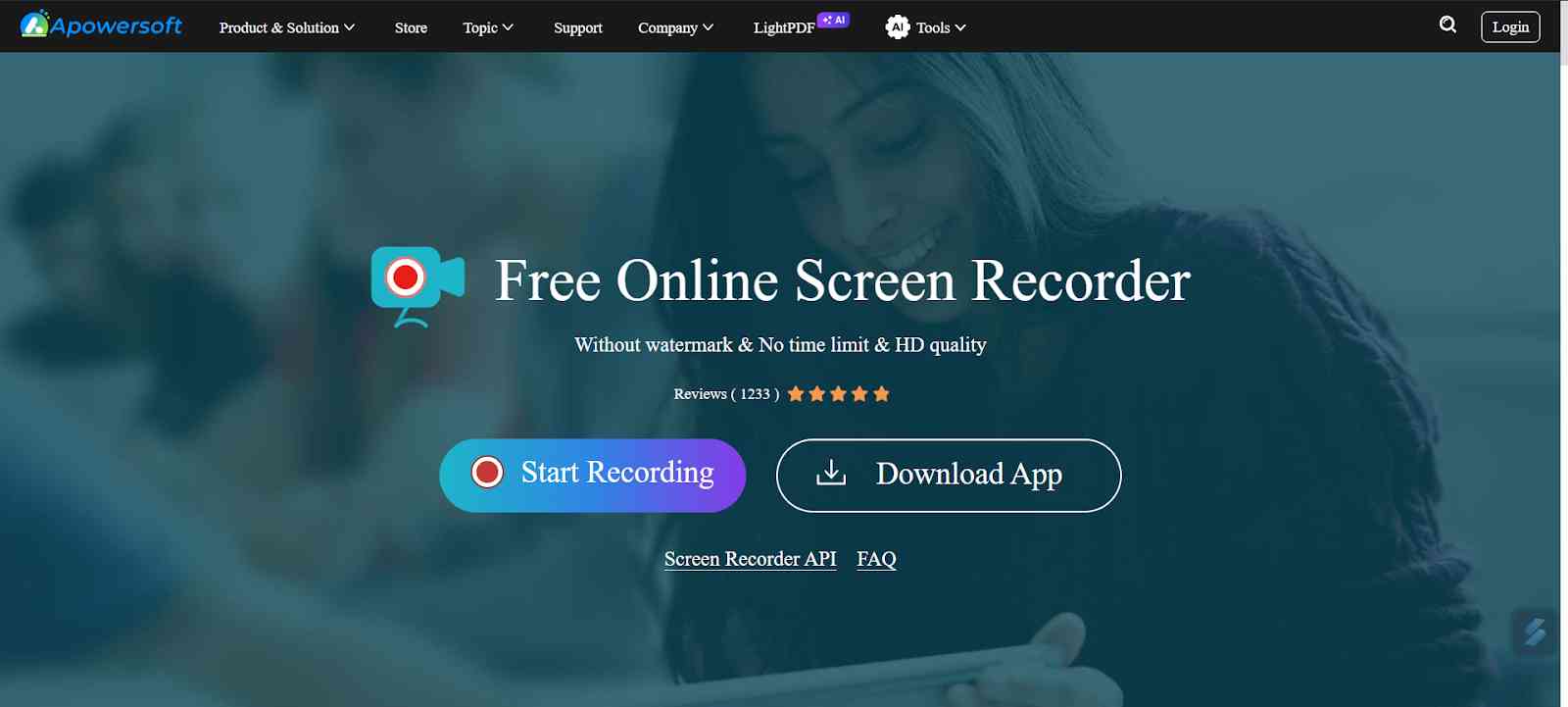
10. Apowersoft Free Online Screen Recorder: Apowersoft Free Online Screen Recorder is a browser-based screen recorder that allows you to capture video without installing any kind of software on your device. It is very quick and ideal for occasional use. It supports multiple output formats, webcam recording, and real-time annotations.
Features:
- The problem is screen recording; there is no installation.
- Support for the mic and system module is there.
- The webcam, you can even name any kind of version.
- Scalable AVR enable recording.
Pros:
- It is very quick and accessible.
- No installation is required to use this platform.
- Good for light occasions.
Cons:
- Dependent on the internet and other capabilities.
- Free versions are online tools for a limited time.
Pricing:
Free version with limitations. Pro version, desktop version costs $39.95 per year.
Factors to Consider Before Choosing a Screen Recorder
- Ease of Use : One of the key factors to use any kind of screen recorder is that it should be clean, and the interface should be easy to start. The recording navigation button should be easily visible and could also have advanced features like editing, customizing, etc.
- Compatibility (Windows, macOS, Linux) : Before choosing any kind of screen recorder, you should also check for compatibility. Not every kind of screen recorder is compatible with Windows, macOS, and Linux. And always check for the cross-platform availability.
- Recording Quality (4K, HD, FPS) : Video resolution and frame rates greatly affect the screen recording. Always consider this point before choosing any kind of screen recorder.
- Audio Recording Support : A good recorder should allow you to capture both audio and microphone inputs simultaneously.
- Editing Tools and Features : Before choosing any kind of screen recording software, always check for the built-in editing tools, which will help you in editing features like trim, cut, annotate, and add effects directly.
- Export and File Formats : Software should support formats like MP4, MKV, etc. And some of the software even allows you to directly upload to YouTube, Google Drive, etc.
- Price and Plans : Screen recorder prices vary from free to premium software.
Best Screen Recording Software for Specific Use Cases
1. Gaming
Bandicam and OBS Studio are excellent options due to their low CPU usage and high-quality recording.
2. Business communication
Loom and Screencast-O-Matic excel in Speed and ease of sharing.
3. Education
Educators may prefer Snagit or Camtasia for their notation tools. It is very helpful for the teachers as well as for the student to watch the lectures again.
4. Developers
Developers can go with ShareX for its versatility. And the occasional users can go for APowersoft because it's a free online tool.
5. Social Content
Movavi Screen Recorder and Tella / ScreenStudio are the platforms where you can screen record with features like scheduled recording ,auto zoom.auto focus, export in many kind of formarts and many features.
Tips for Effective Screen Recording
- Some of the tips that you should always keep in mind are to always check your settings before recording. For example, always check the resolution, frame rate, and audio input, and also ensure that the final input meets your needs.
- Recording in AIDS 1080p or 4K is considered ideal for the clarity of the video. For even more clarity of this recording, you should use annotations and highlights, and you could also zoom the features to guide the viewer's attention.
- This will make your tutorial and demos easier to follow. Finally, always keep your recordings concise.
- Always trim out the unnecessary parts to maintain the engagement and make sure that your content is digestible and catchy.
Conclusion
In 2026, Screen Recorder software will be one of the most powerful, accessible, and versatile than ever. Whether you are a teacher, gamer, or any content creator or professional, there is always a solution tailored to your needs. For any kind of advanced editing, tools like Camtasia, which allows you to have a quick, cloud-based tool, the options are vast. Choosing the right screen recorder depends on your overflow and budget. Always jot down your needs or prioritize testing a few tools. You can surely find a perfect screen recorder for your needs.
Frequently Asked Questions
1. What screen recorder works best on low-end PCs?
OBS Studio and Bandicam are great for the low-end PCs.
2. Can screen recording slow down your computer?
Yes,Screen recording can slow down your computer, especially if you are recording at a high resolution. Closing background apps can help you with that.
3. Is it legal to record Zoom meetings with software?
It’s legal if you have consent from the past participants. Without their permission, it can violate any kind of privacy, and for that, you have to pay a penalty
4. What is the best lightweight screen recorder?
Loom and Apowersoft are online tools that are excellent for light-based screen recorders.
5. Which screen recorder uses the least CPU?
Bandicam is a screen recorder software which is considered to have a low CPU usage while maintaining the high quality output.