Project management software assists teams with project management by planning, organizing and assigning resources to finish projects better. Project management software combines timelines, tasks, and communication into one simple tool that eases your project management, eliminating the worry of size or dynamics of your team.
Using project management software offers you innumerable benefits. It keeps track of tasks, audibly communicates repeated tasks, and ensures seamless team collaboration with communication written all in one tool. This makes it less likely for deadlines to slip away, efficiently allocates resources, and ensures that projects are completed clearly within budget and scope. This improves workplace productivity, and customer happiness.
The availability of free project management tools makes it accessible for all business practices from start-up to seasoned business. Even free options help to keep projects inspiring and organized. Working within these platforms allows teams to collaborate on projects, quickly address challenges, and complete project milestones with ease, making it an element of modern project management functionality.
What are Project Management Tools?
A project management tool is a bit more advanced than your ordinary organizer. It helps you with reporting, communication, file management, and so much more. Imagine an online space where you can set your own rules to organize your work.
There are various ways in which a project management tool or software helps you achieve your goals. You can either organize your work in the form of visual boards or have timelines that track your progress. It also allows you to have dashboards and spreadsheets. However, if you are still confused, you will get the hang of it better when you look into the workflow of the tools I have listed below.
Best Project Management Tools
To help you with an accurate and firsthand insight, I have worked with each tool to understand its workflow. You can assess each tool from the list below, based on its interface, the type of organizational setup it provides, and ease of access.
I have handpicked tools that stand out not just because of their popularity, but because of their real-world usability, versatility, and the value they bring to everyday workflows. So, let us begin.
1. ClickUp - Best to Replace Multiple Separate Tools
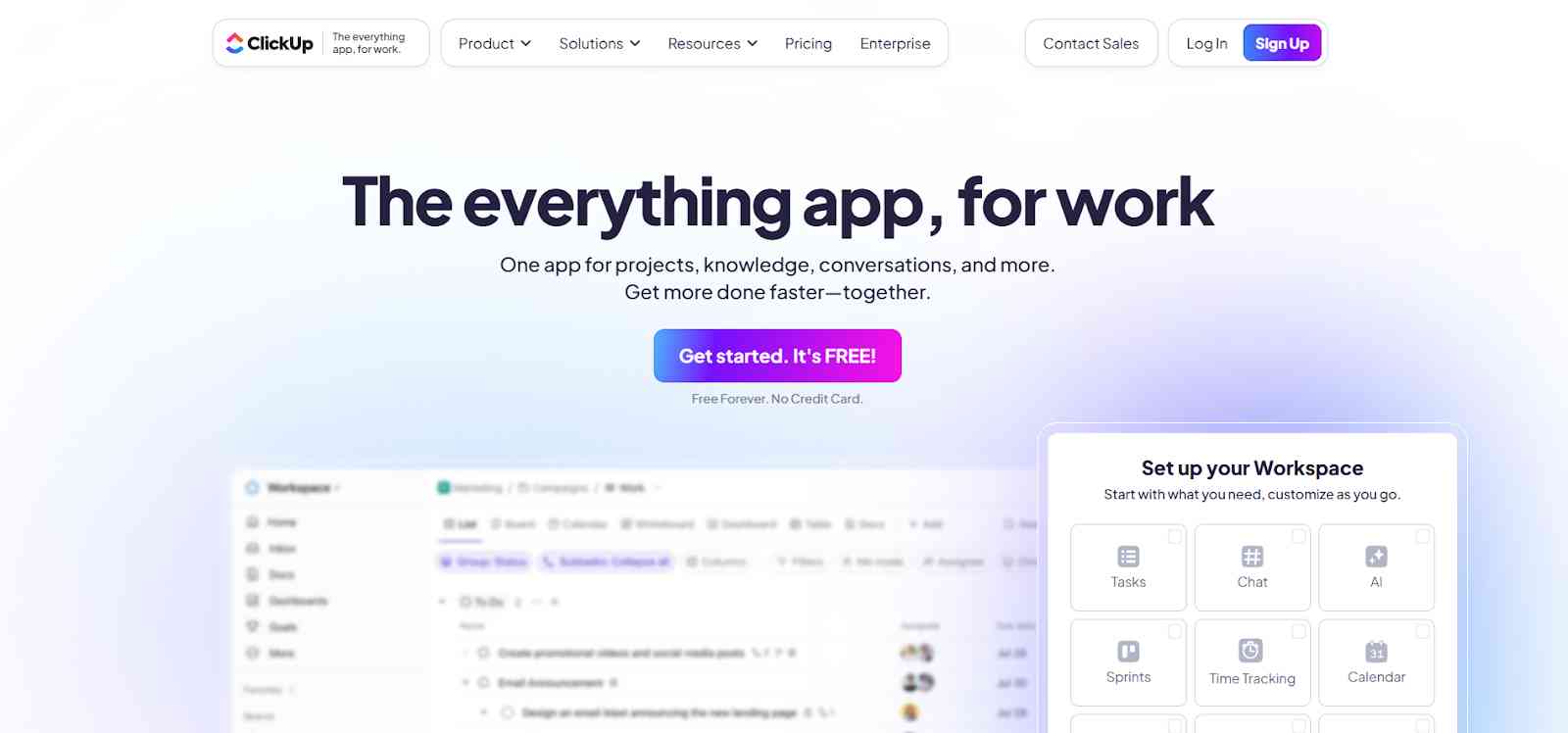
If you are someone from the content industry, you are no stranger to ClickUp. The tool has been the talk of the town for quite some time now. It's not only about the way they have upscaled their business, but also how their end product is one of the best ones on the list.
Now, ClickUp promises to be your all-in-one management tool. My quest with ClickUp was to understand the extent of this claim.
- Logging into ClickUp was a piece of cake as it allowed a quick Google sign-in.
I really liked its automatic pop-up that comes up the moment you finish with your login formalities. It is an instructional video that makes sure you understand what the tool can offer and helps you understand its hierarchy.
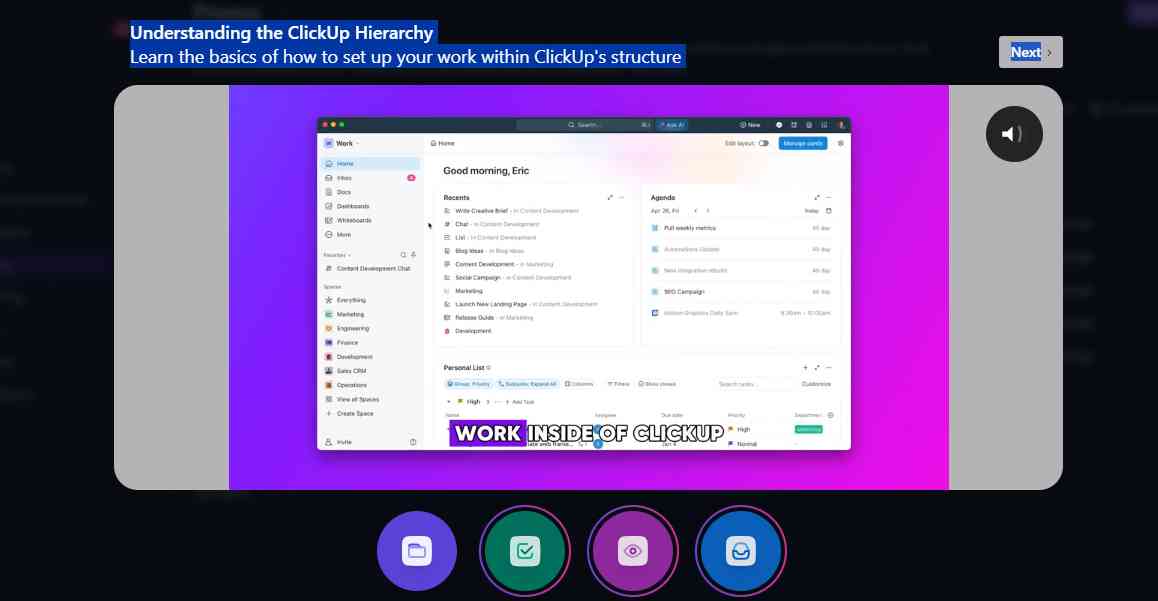
ClickUp Post login instructional video screen grab.
- ClickUp has an entire list of project management aids for you to work with. You can create separate tasks, assign tasks, check the current progress of your team, and also have vision board cues. Its highly optimized setup can also help you track your team’s current progress.
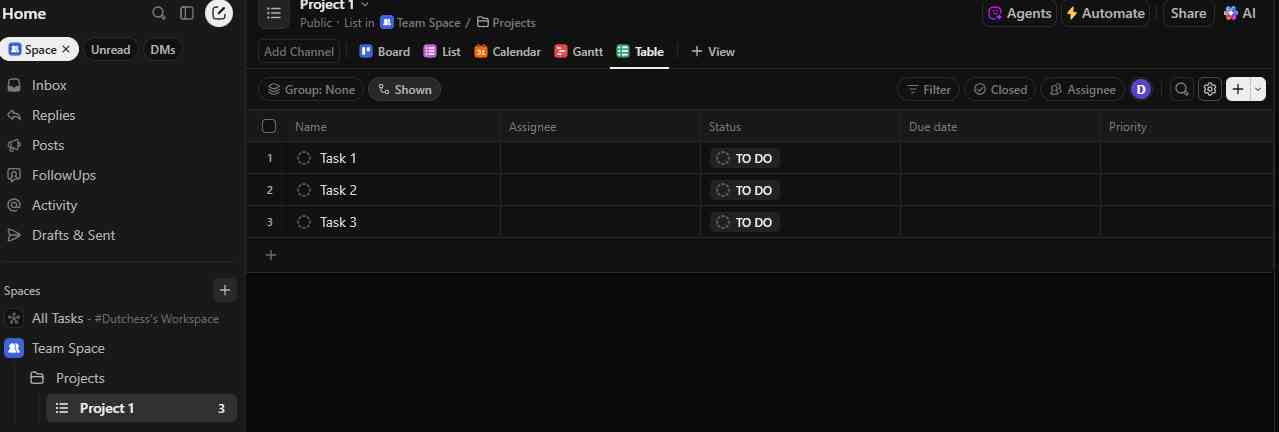
ClickUp Dashboard
- Adding a task or a new board is easy and only takes one click. You can even add the deadline details and keep track of your entire team in one place.
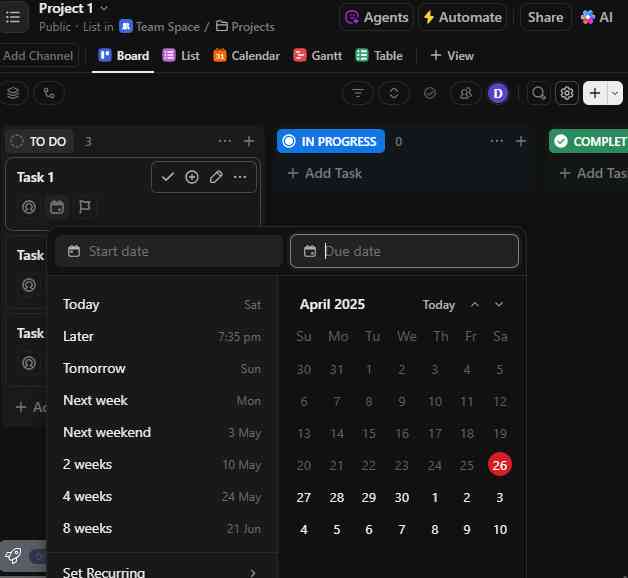
ClickUp Add Task feature
- But what takes the cake for an app like ClickUp is its ClickUp Brain feature. An AI-powered automation that allows you to connect all your apps in one place and have overall control of your setup.
Key Features:
- AI Tools (ClickUp Brain): Incorporate AI into the entire company, so it will quickly answer questions, efficiently search data, and accelerate content creation between projects.
- Resource and Workload Optimization: A planning tool, monitoring the team workload resource allocation, and viewing available capacity, preventing potential burnout.
- Goal Tracking and OKR Tracking: Determine objectives and claims progress individually or collectively utilizing the goal portion of your workspace.
- Integrated Chat and Clips: Comment in real-time, provide updates, and keep discussions related to projects in your team's workflow.
- Dashboards and Reporting: Track productivity, visualize your data, and create custom built reports for deeper evaluation into your projects.
- Proofing, Comments, and Feedback workflows: Streamline reviews, approvals, and feedback from documents or creative material.
- Custom Fields, Custom Statuses, and Task Dependencies: Track information that matters most to you, create custom statuses, track information as well as define task relationships.
- Form Builder and Automate Actions: You can easily assign tickets, gather project requests, or automate actions all within a series of forms and actions.
- Kanban Boards & Gantt Charts: Visualize and manage workflow in various ways through drag and drop boards or y project timelines to define calendar scheduling for projects.
- Integrations: Native integrations included with Slack, HubSpot, TogglTrack, Figma, Loom, Sentry, G Suite, Dropbox, Clockify, and Calendly. You can also connect to another 1,000+ apps through a paid membership with Zapier. Finally, this also has a public API available for custom integrations if approved.
- Calendar Integration and Reminders: When it comes down to deadlines, recombining meetings, and collaborating among teams, you can utilize an embedded calendar and reminders.
- Single Sign-On and Guest Users: Easily set a secure sign-on for an organization or external collaborators.
Pros:
- ClickUp offers an integrated platform that has both management and AI-powered features to keep your work in sync.
- As you use ClickUp, you can set your automated workflows and rules, and control the task flow according to your business needs.
- With ClickUp Brain, you get a dedicated AI assistant that is designed to adapt to your work habits and suggest relevant actions as it improves its learning.
Cons:
- Adapting to ClickUp’s extensive features is a tiring process and can be an overwhelming experience for new users.
- Apart from some bug issues and glitches in the mobile app, the tool also lacks dedicated instructional banners to help you get the hang of things.
2. Trello:
Trello is the ideal tool for someone who is taking the first step in their project management journey. Yes, it lacks highly advanced features like ClickUp and doesn’t have an AI assistant either, but it is an ideal tool to set things in motion.
It relies more on visual cues and lets you stack up your documents or links in an organized pattern.
- You can easily log in to Trello with a quick Google sign-in and access the workplace that lets you onboard your team to various ongoing projects. It has a dedicated space for your team members to align with you on their work and keep things in sync.
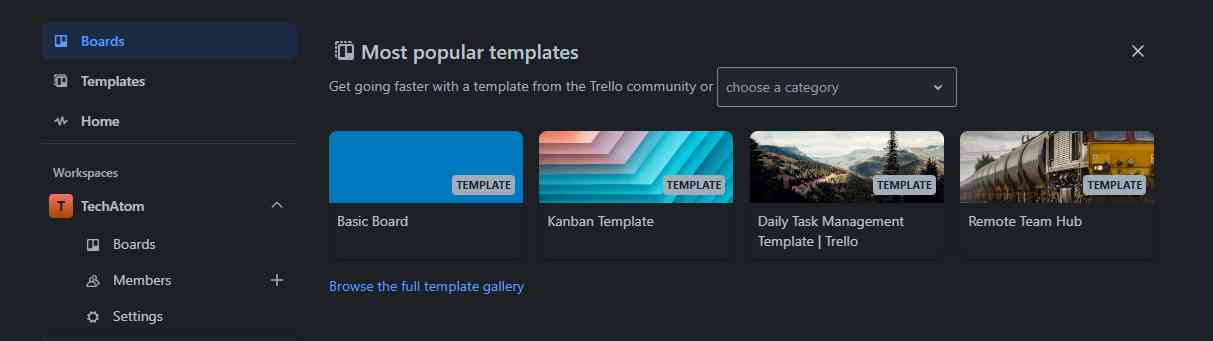
Trello homepage as you log in
What worked for me with Trello is its Kanban style of project management. It is where you rely on visual cues to help organize a workflow. Plus, Trello offers fluidity and lets you explore the space without interruption.
- The feature of adding various cards and labels to identify the progress in the workflow is another added advantage for a business dependent on Trello. As I added a new card to the workflow, it allowed me to add other members and relevant links. It helps establish a perfect sync when it comes to tracking a certain workflow.
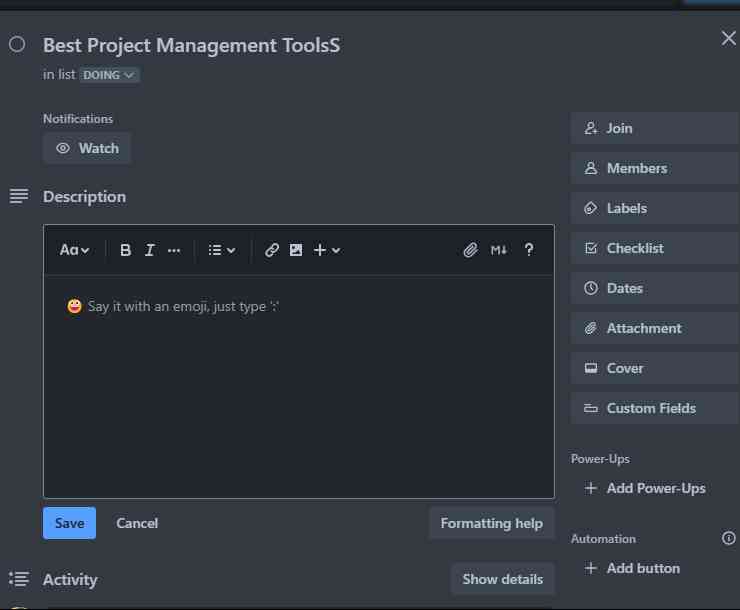
Trello: Adding a card
- You will be relieved to know that Trello allows a collaborative workspace even in its free version. Additionally, it has a highlight section to keep you updated with all the relevant progress and changes in the workflow, earning it full marks in efficiency.
Key Features:
- Cards, List, and Boards: Set up projects visually with drag-and-drop boards, customizable lists, and task cards with details for each idea or task.
- Inbox and Planner: Combine all your messages, emails, and tasks in one spot for clear and actionable planning.
- Email and Message Integration: Combine, convert, or summarize emails and chat messages with a click of a button based on messaging context.
- Automation (No Code): Right out of the box will enable you to automate repetitive tasks using the built-in automation on each board.
- Card Mirroring: Get updates on your task across multiple boards and locations with one card.
- Power-Ups & Integrations: You can link Trello to other apps like Slack, Microsoft Teams, Google Drive, and any other apps across all of your boards.
- Ease of Use: One of the best-known apps for having an ease of use with a simple interface, and ease of adoption is suitable for teams large or small.
Pros:
- If you want a simple tool that has decent visualization signals, Trello may be for you!
- It has simple integration with Slack, Google Drive, and Jira.
- You are not at the mercy of a rigid view, and you can also customize it with a board, list, calendar, etc.
Cons:
- Trello will give up on you for complex projects, as there will be too many lists, cards, or attachments.
- The lack of an analytics feature is another disappointment for all the Trello users.
3. monday.com:
Monday.com offers you the best of both worlds with attractive visual cues and a well-organized system of tracking your work. The initial feel of the app will remind you of Trello and its labels, but with a more organized approach. But it offers more styles than Trello to customize your project management setup
- Logging into monday.com is easy and only takes a quick login with your Google account. Another great thing about its initial sign-in process is that it allows you to add your respective team without even starting the project.
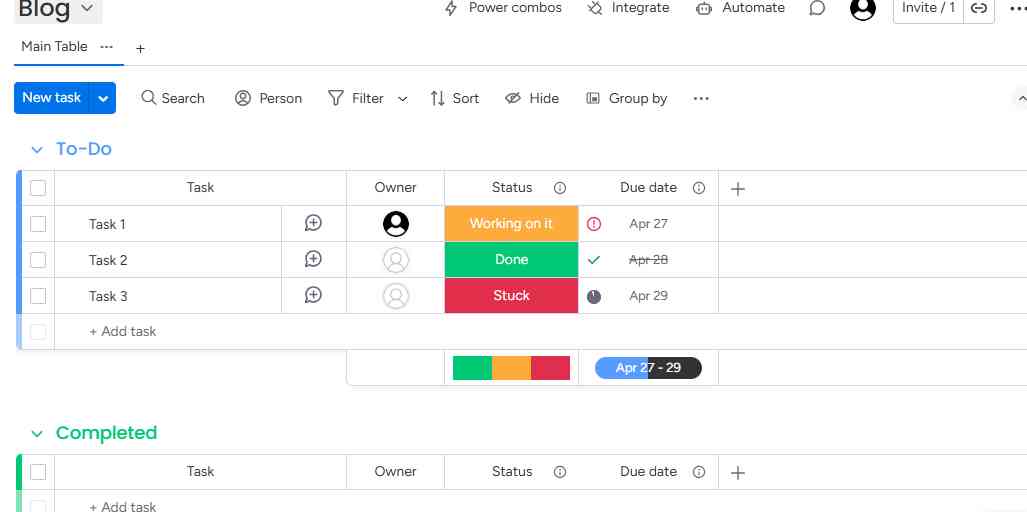
monday.com's initial setup process
What worked for me for monday.com is its status and labels, and the due date feature that gives a crisp view of the work interface. You will be able to assess easily how far the progress is for each given task.
- Not only will you be able to sort your work in designated labels as per their status, but you can even add a separate group altogether to keep track of different projects.
- You will get a ready-made template in case you wish to automate your workflow for repetitive tasks, or you can create your own to implement the same. There is also an easy integration system with the tool, and you can have more than 82 apps to integrate with your workflow easily.
Key Features:
- Unified Work Platform: Consolidate project, sales, marketing, IT, and other aspects into a customized workspace.
- AI-Powered Productivity: AI assistants automate actions, proactively flag risk, enrich lead data, and give prescriptive advice for project execution.
- Custom Workflows (No-Code): Use no-code, drag-and-drop functionality to build process flows and admins can customize controls for consistency organization-wide.
- Team Visibility and Tracking: Dashboards provide real time visibility into status, metrics that help analyze performance, and alignment of work between teams.
- Automation and Risk Detection: Automate processes, take proactive measures to detect risk, and achieve valuable deliverables faster.
- Resource and Portfolio Management: Encourage scalable execution with resource and portfolio-level management capabilities.
- Enterprise-Grade Security: Compliant with the top-tier security certifications and offers substantial protection for sensitive work data.
Pros:
- You won't be let down by monday.com’s highly visual and customizable features that offer Kanban, Gantt, flexible boards, and columns.
- Its intuitive dashboard makes team collaboration easier and helps you track progress aesthetically.
- The tool is ideal for small and medium-scale businesses, helping them scale their growth easily.
Cons:
- You need to be careful about the way you use the tool, as it can easily clutter when implemented for complex workflows.
- The tool offers a free plan only on a trial basis for 14 days.
4. Todoist
If you are looking for a fun yet highly professional setup to help you get the job done, then Todoist is the one for you. Now, if you use an iPhone, you must know that Todoist has a cult following of its own as a solo task manager.
But it can be a great addition to your project management mission, too. It offers a simple interface where you can add tasks like you do as a reminder or opt for a project management template.
- You can log in to Todoist easily with one-click sign-in, and it doesn’t even ask you a bunch of questions to set up your workspace.
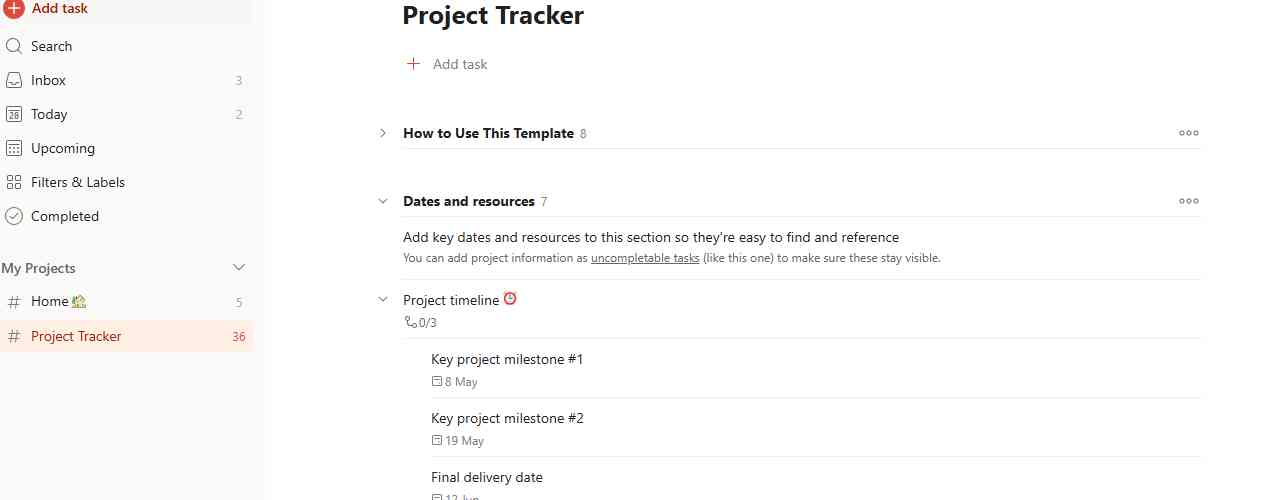
Todoist interface
With Todoist, you won’t have to deal with complicated visual cues. What I liked the most about this app is its simple interface and proper guidelines, which help you track a project efficiently.
- My main reason for putting this tool on our list is that it offers a new perspective for your project management woes. It relies on labels, sub-tasks, and task prioritization to help get the job done. You can collaborate and share projects and make sure your entire team is in sync.
- A quick integration with your existing tools, like Calendar and other productivity tools, makes using Todoist a hassle-free experience. Moreover, a set of dedicated labels to sort tasks along with priority reminders will help you understand your team’s progress better.
Key Features:
- Task Capture and Organization: Quickly add tasks using natural language and sort by projects, priority, labels, or custom filter.
- Calendar and Recurring Tasks: Visually see your schedule, create due dates, and automate recurring tasks, all in a simple and easy way to plan your time.
- Team Collaboration: Shared workspaces for teams, allowing you to collaborate on tasks, projects, and checklist items.
- Templates and Custom Lists: Get access to 50+ templates to jumpstart your projects and create systems to address recurring needs.
- Focus and Productivity Tools: Simon outcomes and focus on the work that matters by sorting all of your tasks into custom views and views.
- AI-Powered Task Assists: Todoist Assist intelligently makes sense of any information that you enter to create actionable plans.
- Cross-platform and Syncing: Available on the web, mobile, and desktop with real-time syncing and notifications.
Pros:
- It is one of those tools that offers a simple design but can manage the given project tasks efficiently. For example, the Reminder feature can help you have the upper hand with your ongoing tasks.
- You can have dedicated labels and cues for the ongoing project to help establish better communication.
- Todoist can be accessed without an active internet connection.
Cons:
- You cannot have a visually aesthetic setup with Todoist, as it doesn’t have any Kanban boards or Gantt charts.
- The free plan only allows up to 5 personal projects.
5. Basecamp
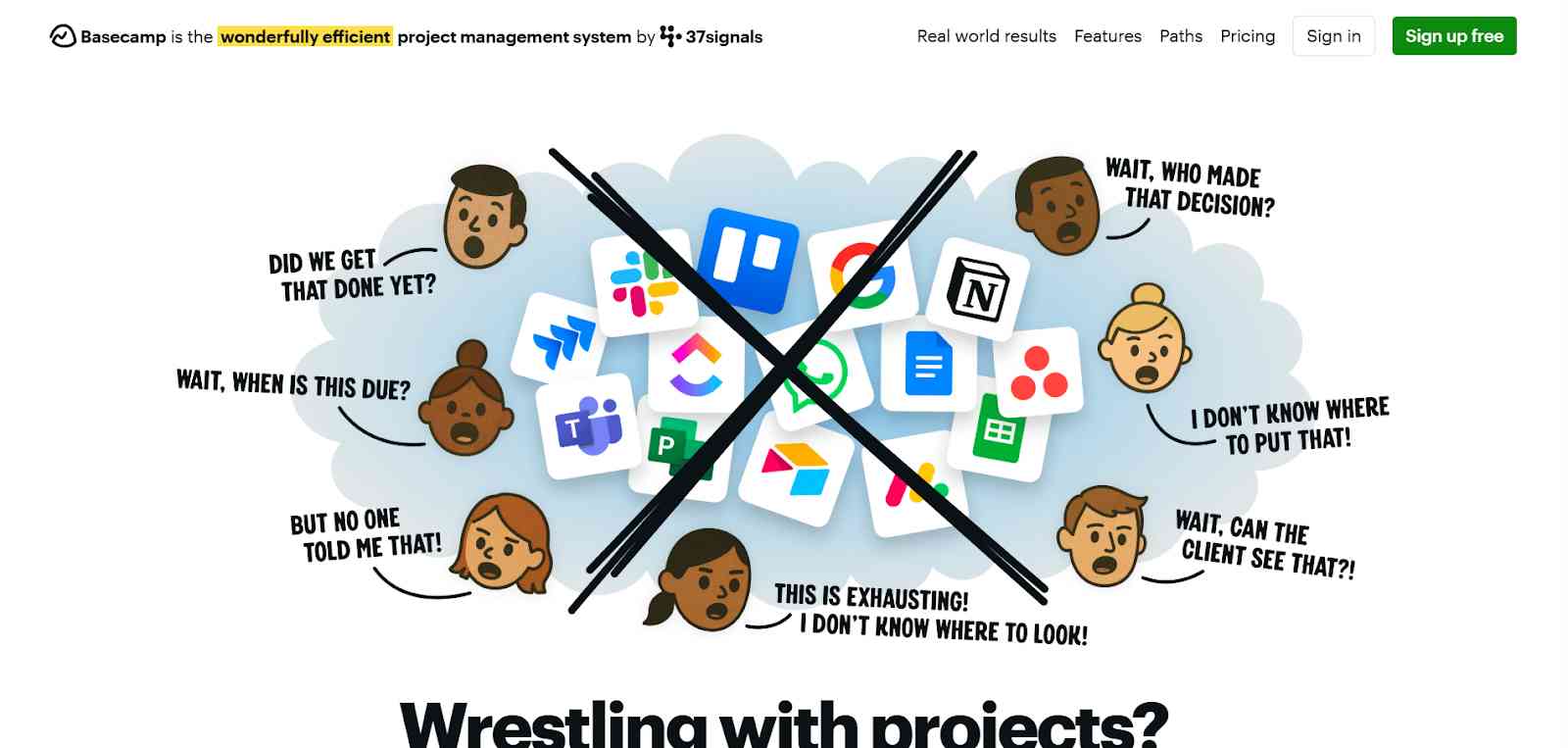
Basecamp offers a crisp solution for all the organizational clutter. You can use the tool to track all your ongoing projects in one single interface.
The easiest way to explain Basecamp as a tool is to consider it as a social media platform for your ongoing projects. It allows you to announce your ongoing task so that the entire team is in sync.
- Logging into Basecamp was easy, but its rigidity on having a mandatory twelve-character password was a bit frustrating as a new user.
You will like Basecamp if you need a message board, scheduler, or a Docs & Files setup that allows you to upload your links, files, and everything else to be synced systematically in one place. What I liked most about its setup is its Sync feature which makes sure everyone knows the workflow and its distribution.
- It has some niche features, like pinning a message or the provision to declutter your workspace with proper informational banners and heads-up.
- Apart from being able to communicate with your team about the daily progress, it allowed me to automate routine tasks and even assign To-Dos in bulk.
- As a business, you know that keeping up with the expectations of your clients is one of the biggest challenges. With Basecamp, you can have seamless collaboration with clients, keeping them in the loop while controlling what they can access and interact with.
Key Features:
- Comprehensive Tool Collection: Incorporate tasks, documents, chat, calendar, files, and more into one connected platform.
- Task Lists and Scheduling: Make task lists, delegate tasks, and set deadlines using calendar integration.
- Group Chat and Message Boards: Engage in team discussion using the convenient group chat and message board functions for team communication.
- Automated Check-Ins : Set up automatic, repeatable check-in prompts for teams to stay aligned with no extra team meeting time.
- Document and File Storage: Safe document and file sharing organized within projects for fast and easy access.
- Client Collaboration: Collaborate with clients on projects while maintaining privacy and control over the information shared.
- Straightforward, Flat Pricing: Easy and transparent pricing, especially a good fit for small businesses with predictable expenses.
Pros:
- Unlike any other popular project management app, you will have access to centralized communication with Basecamp.
- The Check-in feature helps everyone to be in sync for the day.
- Includes to-do lists, calendars, and file sharing all in one place.
Cons:
- Using Basecamp is easy, but getting accustomed to the various corners of the tool is time-consuming.
- There are no inbuilt analytics metrics with Basecamp to help assess the progress.
Pricing
|
Version |
Pricing |
|
Free Version |
1 Project / 1 GB |
|
Basecamp Pro |
$299/month |
|
Basecamp Plus |
$15 |
6. Wrike
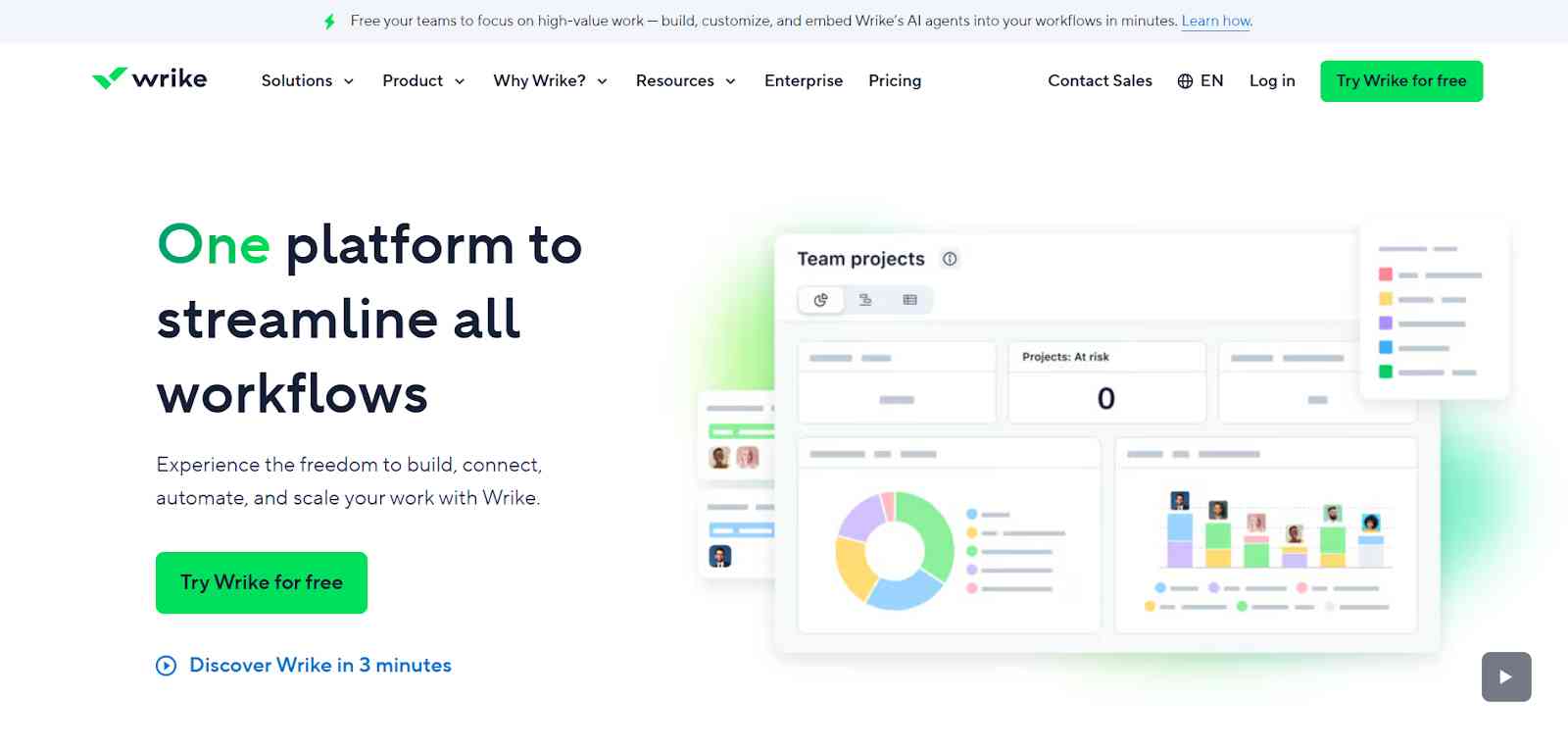
Wrike is a top work management tool used by over 20,000 organizations, including Siemens Smart Infrastructure, Walmart Canada, The Estée Lauder Companies, and Sony Pictures Television, across more than 140 countries.
Wrike is built to be as flexible and scalable as possible. It’s customizable to your preferred way of working and it can manage the complexity and volume of projects that the very largest companies are working on. And with a suite of tools for everyone from team members to project managers and heads of marketing, Wrike is useful in every department in your organization.
I liked Wrike because of its robust project management capabilities that help streamline workflows. Specifically, it offers dynamic work intelligence through a set of AI-powered features such as smart recommendations for workflow automation, task creation, comment summaries, and risk prediction. These features are particularly beneficial when overseeing large-scale projects that have many moving parts.
Wrike allows teams to standardize and replicate project structures easily with tools like blueprints, which allows teams to save project plans in its entirety (tasks, timelines, and dependencies included) as a template. This has very valuable use when you have recurring projects in a consistent structure. Wrike also has the capability to help you scale using support and onboarding service 24/7 around the globe to ensure teams begin utilizing Wrike quickly and effectively through implementation.
Key Features:
- Customizable Dashboards and Views: Wrike offers multiple project views including List, Board (Kanban), Table, and Gantt charts, allowing users to visualize projects in the way that suits them best.
- Task Management: Create, assign, and track tasks easily with detailed descriptions, due dates, priorities, dependencies, and subtasks to keep projects organized.
- Time Tracking: Built-in time tracking lets team members log hours spent on tasks to help optimize productivity and resource management.
- File Sharing and Proofing: Share documents within the platform and use Wrike's proofing tool to annotate, comment, and compare different file versions for smooth collaboration.
- Reporting and Analytics: Generate customizable reports and dashboards to monitor project progress, team performance, and key metrics in real time.
- Request Forms and Workflow Automation: Create dynamic request forms that automatically route and assign tasks. Automate repetitive workflows with triggers and actions to save time.
- Resource Management: View team workloads and effectively allocate resources to prevent overallocation and balance capacity.
- Real-time Collaboration: Collaborate within tasks through comments, @mentions, file attachments, and approval workflows to ensure clear communication.
- AI-Powered Features: Leverage AI to prioritize tasks, predict project risks, and improve decision-making for smoother project execution.
- Extensive Integrations: Connect Wrike with over 400 third-party applications, enabling seamless cross-tool workflows and data synchronization.
Pros
- Wrike offers a world-class onboarding process and includes helpful video walkthroughs that guide users step-by-step.
- The right-click context menus make it possible to perform more actions with fewer clicks, enhancing efficiency.
- AI features are available across all plans at no extra cost, providing users with advanced tools without added fees.
Cons
- Integrations with other apps come at an additional cost regardless of which plan you are on.
- Two-factor authentication (2FA), an important security feature, is only available for users subscribed to the enterprise plan.
7. Asana
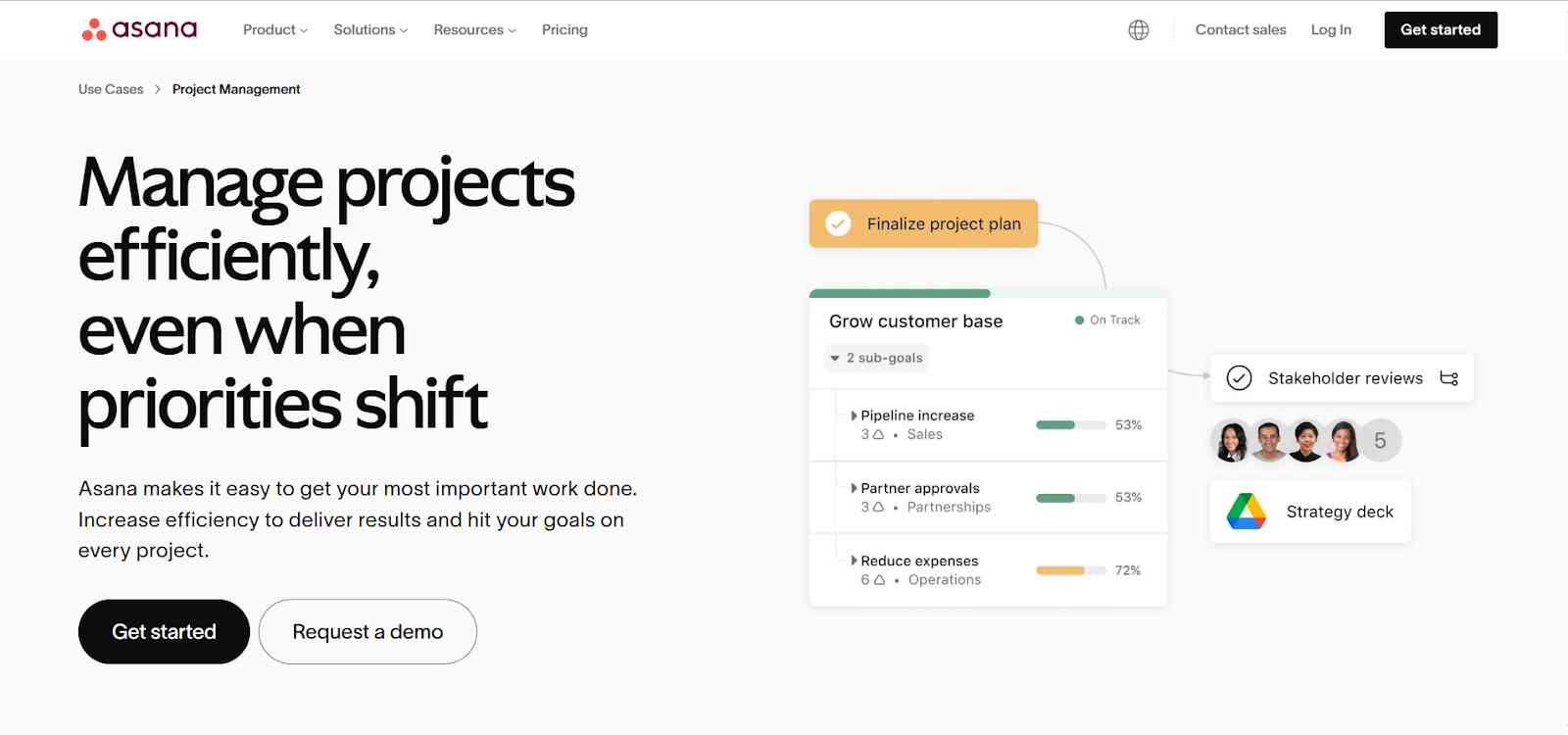
Asana is a very organized work management software in the market to manage projects, teams, and teamwork from one location. The platform manages all your work simply: set goals, create projects, collaborate with a team, and drive productivity.
My first impression of Asana is that it is a simple, modern, and formal-design platform. The platform is made in such a way that anyone can utilize even the most complex features and complete complex actions.
Asana has an extensive library of templates, first. These templates come with built-in integrations with third parties apps that makes it easy to manage work. Second, a long list of pre-built rules allows you to build automation in a second.
Key Features:
- Establish goals at the company level, project level, team level, and individual level.
- Multiple project views, including a board and timeline view to visualize progress.
- Reporting to get a sense of project progress.
- Portfolios to visualize and manage projects.
- Messaging to communicate with the team on projects.
Pros
- Clean and simple interface.
- Very organized software and easy to use.
Cons
- More costly than other PM software on the market
8. Smartsheet
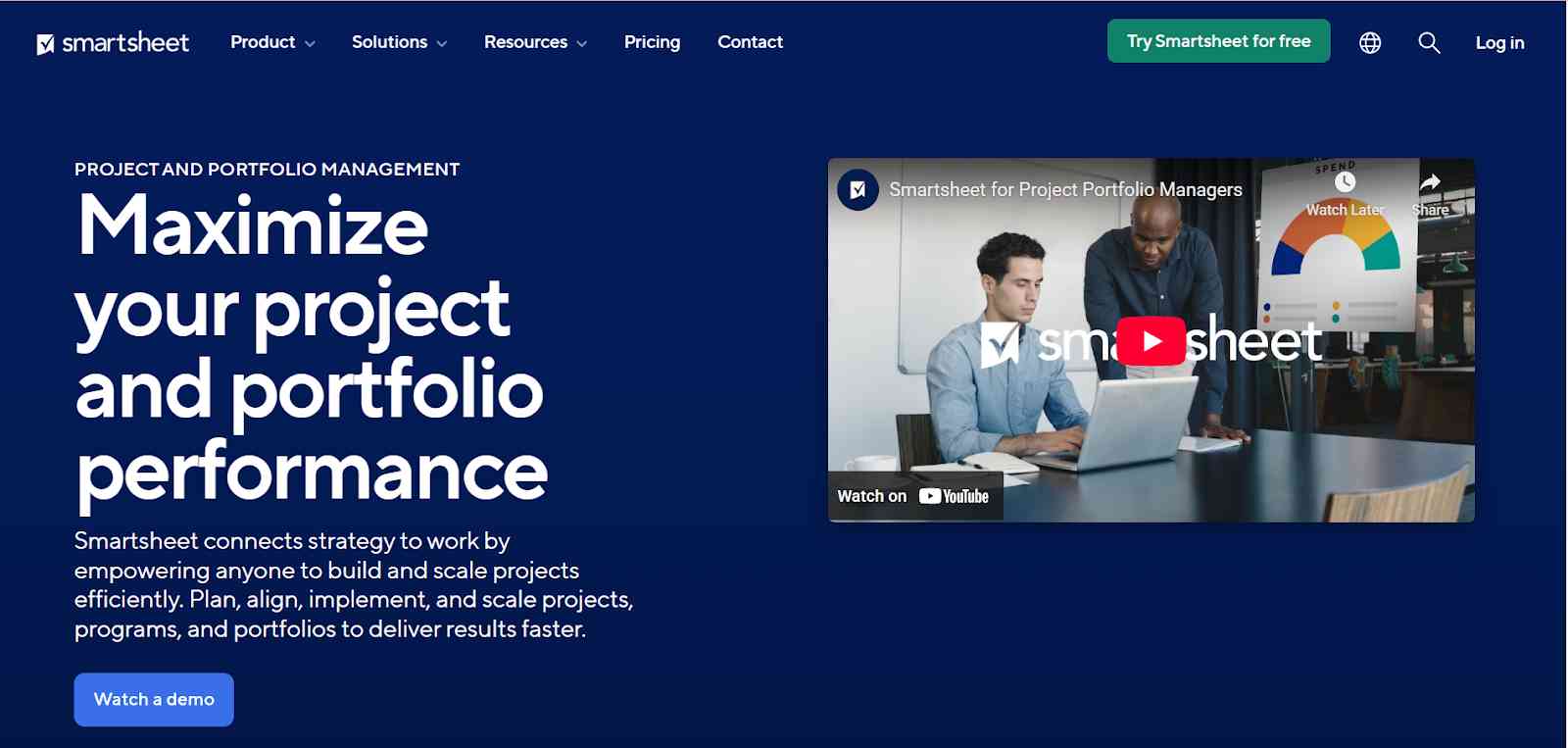
Smartsheet is still a strong consideration for teams that favor spreadsheets to manage projects. Smartsheet is partially modeled after the traditional spreadsheet, but as far as project management platforms go, it is one of the more visual ones available. It utilizes cloud-based spreadsheets and automated workflows to create project and task management features and benefits.
Key Features
- Project Planning: Develop detailed plans and decompose projects into tasks; utilize Gantt, Kanban boards, and various views to manage dependencies and monitor progress.
- Resource Management: Optimize resource allocation with project-specific views and cross-project heat maps to enable team involvement across tasks and projects.
- Budget Management: Control project budgets by tracking expenses and monitoring cost thresholds to prevent overruns and enhance budgeting accuracy.
- Project Management: Oversee tasks of any size with a unified platform, standardizing structures and processes for effective management and visibility into projects.
- Project Delivery: Foster collaboration across teams by providing a shared platform for collective project innovation and delivery.
- Analytics & Reporting: Utilize real-time dashboards for key project statistics, creating comprehensive reports from aggregated data across multiple sheets.
- Workflow Automation: Implement automated workflows to minimize time spent on repetitive tasks, activating based on conditions or schedules.
- Scaling Projects to Programs & Portfolios: Standardize project frameworks with templates, facilitating the automation of project creation and reporting to scale efforts from projects to broader programs and portfolios.
Pros
- Smartsheet excels in the depth of technical knowledge.
- Advanced features and capabilities that help manage projects with many involved stakeholders.
Cons
- Users who don't have the background or knowledge with spreadsheets find it difficult.
- Its add ons can also start to add up quite a bit.
9. Hive
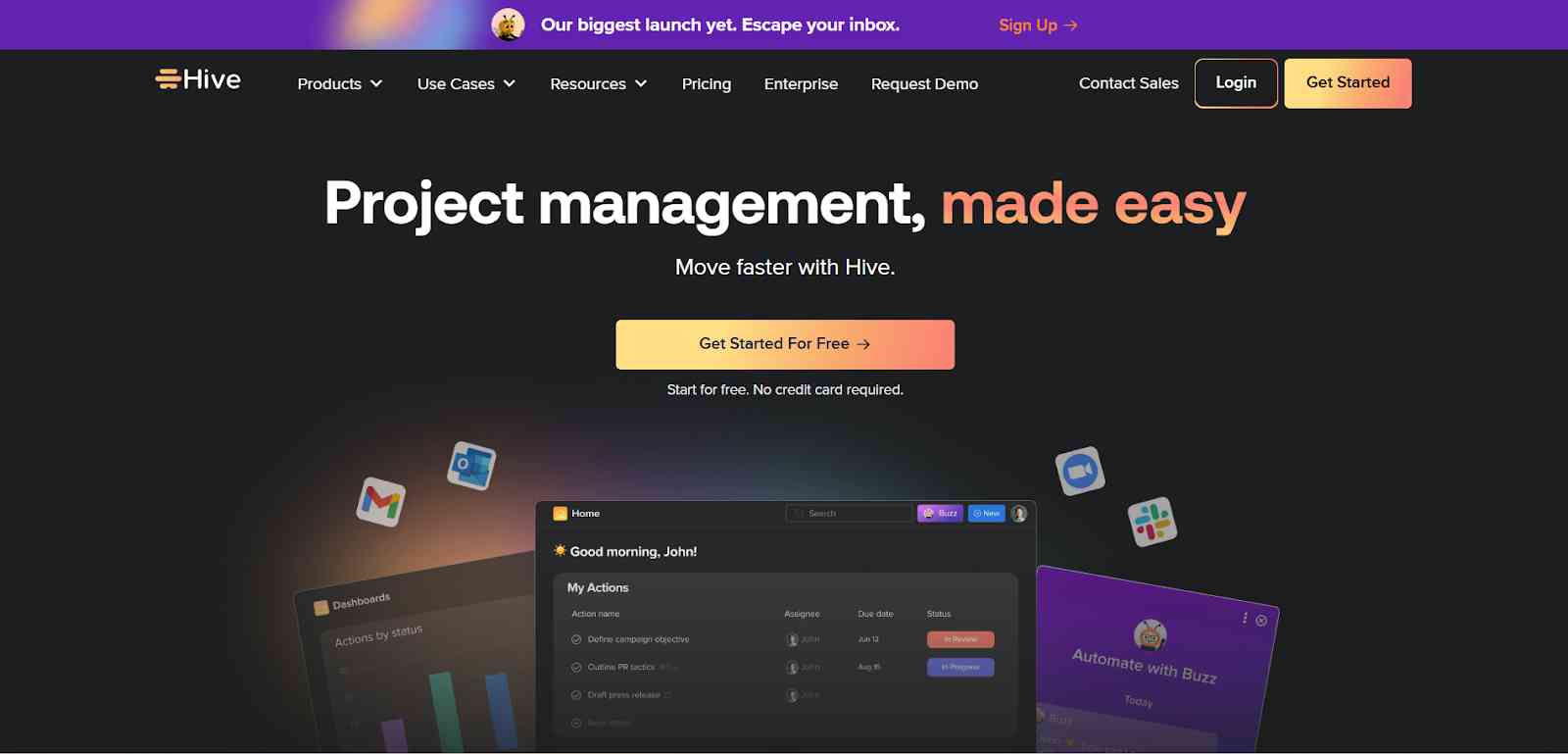
Hive is an adaptable project and team collaboration service that consolidates everything work-related into one hub. One of Hive's differentiators is its open source approach: every feature on the product roadmap is based on user input, so you can expect the product to continuously evolve based on the user's needs.
I like that it contains real-time messaging, collaborative notes, proofing and approvals and a shared project view, which is all a great choice for a team who wants to work closely together while not working in silo. Another feature that impressed me is the "action cards" and you can collaborate on the task profile, embedding subtasks, comments, attachments, approvals, all in the same place.
Besides collaboration, Hive has flexible project views, dependencies, and intake forms, which gives you an easier means of organizing and prioritizing your action items. It offers native email integration, which means that you can convert an email into a task without changing applications.
Key Features
- Centralized Location for Everything: It allows organizing your chores, billing, approvals, projects, and more in one location.
- Tasks and Projects: You can either start with a task or a project
- Dashboards: Create a unique dashboard and client portal to highlight the most crucial details of your project.
- Objectives and Reporting: Hive's dashboards and real-time information keep your team on the same page.
- Combinations: For convenient access, bring all of your most used tools and data inside Hive.
- Cooperation Among the Team: Collaborate with peers via chat, tasks, approvals, and other means.
- Project perspectives that suit your needs: Use your preferred method to visualize your activities and projects.
Pros
- Customizable dashboards: Users can build dashboards to showcase the most pertinent metrics, enhancing project tracking and reporting.
- Powerful integrations: Hive connects with popular apps (like Slack, Google Drive, and Jira), putting everything into one platform.
- AI assistance: HiveMind will provide in-app AI that autogenerates your tasks and content and will give suggestions for meetings, email replies, and more.
Cons
- Subscription for Addons: Premium subscription is required for proofing, advanced analytics, and some approval workflow capabilities and may result in increased costs for advanced users.
- High-Capacity Project Performance: Projects requiring significant resources may at times experience lag or slow load times on extensive data or integrations.
10. Celoxis
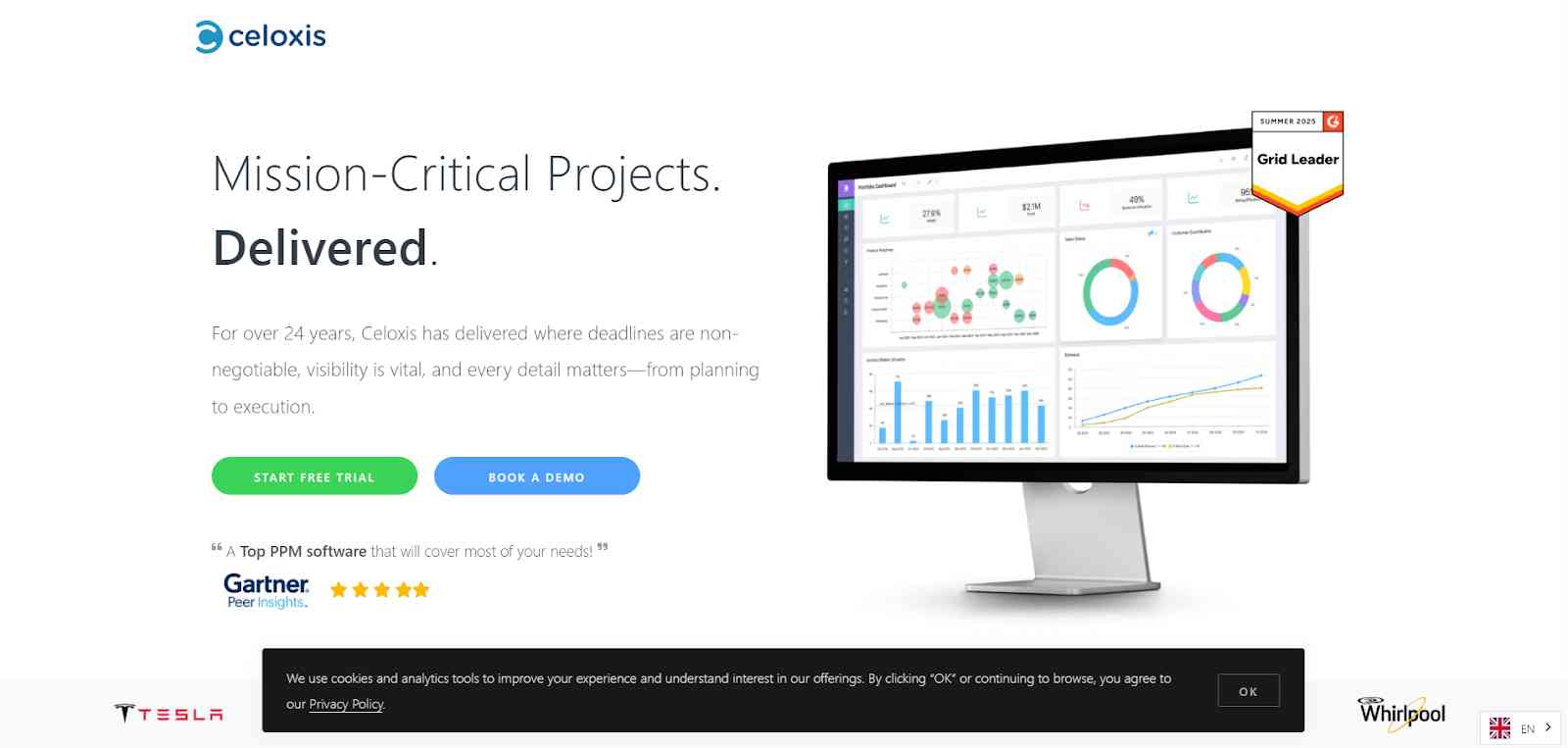
Celoxis is a project management software that integrates powerful functionality with AI to enhance workflows and project delivery. It has a variety of tools, such as Gantt charts, and dashboards for real-time snapshots, as well as advanced resource management tools that address issues such as friction in workflows and overall visibility of the project.
Celoxis is designed to make planning and workflow management easier even if it's complex. AI-driven insights take traditional project planning and enhance its power by allowing teams to anticipate risks, optimize resources and make assessments using data. The platform can adapt to operational workflows of all kinds. You could be managing dependencies among multiple projects, balancing workloads of available resources, or tracking financials, it can do it all.
Proactive risk management of the platform points out potential bottlenecks with actionable insights, and predictive analytics assesses results to enable even smarter planning. With cloud based and local deployment options, Celoxis is scalable across organizations of all sizes and applicable to such a wide variety of industries including IT, consulting, construction, finance, and others.
Key Features
- Intake Management: Keeps track of project request intake from web forms, emails, and other sources that can be ranked and prioritized by unique logic and capabilities.
- What-if Analysis: Lets teams run scenarios on available resource capacity, based on custom metrics, and help select the right strategic and tactical projects.
- Project Planning: Provides dynamic project plans that automatically adapt to resource time-off, task delays, and shifting priorities, in addition to supporting advanced Gantt charts.
- Custom Workflow Apps: Makes it easy to define, track, and improve any business process with custom workflow apps and extensible business intelligence with real-time data.
- Time Tracking and Kanban Boards: Provides detailed time tracking, Kanban-style boards for visualizing workflows, and more advanced tools for task management.
- Integrations: Easily integrate into over 400 business apps, including JIRA, Azure DevOps, and any productivity application, and build integrations with its API.
- Advanced Reporting: Provides advanced reporting and dashboards, real-time analytics, and auto reports to stakeholders, and highly customizable reports for project insights.
Pros
- Perspectives on the Portfolio Level: Celoxis offers executives and teams centralized dashboards that illustrate current data across all projects, enabling informed strategic decision-making.
- Highly Customizable and Flexible for Scaling Organizations: The platform provides flexible workflows, custom fields, and integrations that allow organizations to customize features as they increase complexity and size.
- Advanced Reporting and Analytics, including AI Forecasting: Celoxis gives robust and responsive reporting, multi-level reporting, and analytic dashboards with modern visualizations and predictive analysis- based on AI predictive methods.
Cons
- There Isn't a Dedicated Mobile App: Currently, there is no dedicated mobile app, which may be an inconvenience for those who want to manage tasks from a mobile device.
- May Not Be Right for Smaller Teams or Organizations with Fewer Than 5 Employees: Celoxis's advanced portfolio and resource management features are for teams with moderate complexity functionality, so very small organizations may find it is more than they need.
Top Features to Look at in Project Management Tools
Now that I have discussed my experience with existing project management tools in the market, let us talk about how you are expected to analyze these tools.. It is always a possibility that we perceive the features of a given app or tool differently.
Your concept of efficiency can vary from mine. But we have you covered in a situation like that, too. Here are a few things you can keep in mind to find your ideal project management tool:
-
- Task Management: You should always look for a tool that offers flexibility in task management. A setup that allows you to create, assign, and prioritize tasks easily. In fact, deadlines for reminders or any added extra input can be a great addition too.
- Project Planning: An ideal project manager should be able to help you visualize your project timeline. A quick overview of ideal goals, task assessment, and any added extra input is always a good investment.
- Automation: Any automation feature that helps your entire team to be in sync and lets you have an upper hand on your deadlines. It can be sending reminders or emails, or keeping up with the designed workflow.
- AI: Your tool should be able to leverage the power of AI in a way that helps you in your crisis management. It can be AI-driven insights, task predictions, smart suggestions, or automated crisis management.
- Collaboration: One of the most important aspects of managing a business is systematic collaboration. Your task manager should be able to offer real-time communication, file sharing, comments, mentions, and collaborative editing, and take the pressure off your head in no time.
- Mobile Access: We live in a world where work does not always happen at a desk. Your tool should be able to keep up with you on the go. No matter what your work setup is, you should be able to approve, check, and be aligned with the day's work or your documents without any hassle. A tool that provides mobile access is ideally a better choice as compared to others.
Benefits of Project Management Tools
Teams and organizations of all sizes can benefit practically from the use of project management software.
- Improved Collaboration: Project management solutions make it easier to coordinate and keep everyone informed by giving team members a common platform on which to interact, share files, and get updates.
- Enhanced Project Planning: In order to help teams develop realistic project timeframes, robust scheduling and planning capabilities facilitate task organization, responsibility assignment, and milestone setting.
- Better Resource Management: More effective use of resources can result from team members and management keeping an eye on availability, allocating effort fairly, and avoiding overcommitment.
- Improved Risk Control: Project teams may detect any issues early and take action to lessen their impact on the project with the use of integrated risk tracking and reaction planning elements.
Why do Companies need Project Management Tools?
Before I wrap this up, let's quickly rewind and understand why you need a project management tool. The thing is, once you can identify the lack in your setup, your decision-making process will be smoother.
Your project management tool is the focal point that helps keep things in place. It is not humanly possible for you or your team to keep track of every day’s work without an organizational setup. Relying on Excel might seem like an easy way out, but can you imagine the chaos of everyone in your business working on the same sheet?
It also keeps your communication streamlined. Instead of switching between endless email threads and messaging apps, your team can collaborate directly within the tool. Comments, attachments, updates, and the best part, you are in sync with every little change that takes place.
As a business owner, the worst thing that you can do is micromanage your business. With a good tool, you can get a bird’s eye view of every project running in your company. You know exactly what’s on track, what’s lagging, and where your attention is needed, and you will be able to stay on top of things and yet maintain the team spirit.
There is also the thing about accountability, where the assigned tasks help encourage ownership, and help your team be ahead of their supposed deadlines.
Conclusion
Managing a business is tough enough already. You should not have to constantly stress about missing out on deadlines, losing track of tasks, or keeping your team on the same page. That is exactly where project management tools come in and save the day.
Whether you are a beginner trying to organize your first set of tasks or a seasoned business owner managing multiple teams, there is a tool out there that fits your needs. You just need to figure out what works best for your workflow and your goals.
At the end of the day, the right project management tool is not just about organizing your work better. It is about giving yourself the mental space to focus on what matters the most—growth, creativity, and building a business you are proud of!
Frequently Asked Questions
1. How do project management tools help businesses improve efficiency?
Project management tools help inculcate accountability in the team. When each member is aware of their daily tasks and the set expectations for them, they can perform efficiently. Plus, the highly organized nature of these tools helps improve productivity with accurate allocation of resources and manpower.
2. What are the key features to look for in a project management tool?
An ideal project management tool should be able to help you with task management, seamless collaboration, visual cues, and a trusted mobile setup for smooth functioning.
3. What are the most popular project management tools available today?
Some of the popular project management tools are ClickUp, Trello, and monday.com.
4. How can I choose the right project management tool for my business?
The ideal way to choose the right project management tool for your business is to identify your business needs and evaluate your workflow. To find the best tool for your needs, the most effective approach is to test out the free versions yourself and make an informed decision.
5. What are the differences between free and paid project management tools?
The difference between a free and paid project management tool is the same as a free and a paid app. You will get better features and advanced functionalities like Gantt charts, custom reports, budget tracking, automation, etc., in the paid version. Additionally, paid plans typically support larger teams with no user or project limits.